uni-app开发教程栏目介绍uni-app支持的长度单位为px和%,基准宽度为750px;使用@import语句导入外联样式表;使用style、class属性定义内联样式;支持class、id等选择器;全局样式和局部样式的作用范围不同..
|
uni-app开发教程栏目介绍页面样式、配置文件和生命周期
推荐(免费):uni-app开发教程 文章目录
前言 本文先介绍uni-app的页面样式和布局,包括尺寸单位、样式导入、内联样式和选择器等;再介绍两个配置文件,即pages.json和manifest.json的配置项和基本使用;最后简要介绍了生命周期的基本使用。 一、页面样式与布局 1.尺寸单位 uni-app框架目前仅支持长度单位
2.样式导入 使用 <style>
@import "../../common/uni.css";
.uni-card {
box-shadow: none;
}</style>3.内联样式 框架组件上支持使用style、class属性来控制组件的样式: <view class="normal_view" /> 之前的hello uniapp项目中,App.vue如下: <script>
export default {
onLaunch: function() {
console.log('App Launch')
},
onShow: function() {
console.log('App Show')
},
onHide: function() {
console.log('App Hide')
}
}</script><style>
/*每个页面公共css */
.red{
color:#007AFF;
}</style>pages/index/index.vue如下: <template>
<view class="content">
<image class="logo" src="/static/logo.png"></image>
<view class="text-area">
<text class="title">{{title}}</text>
</view>
<view class="red">
hello, corley </view>
</view></template><script>
export default {
data() {
return {
title: 'Hello'
}
},
onLoad() {
},
methods: {
}
}</script><style>
.content {
display: flex;
flex-direction: column;
align-items: center;
justify-content: center;
}
.logo {
height: 200rpx;
width: 200rpx;
margin-top: 200rpx;
margin-left: auto;
margin-right: auto;
margin-bottom: 50rpx;
}
.text-area {
display: flex;
justify-content: center;
}
.title {
font-size: 36rpx;
color: #8f8f94;
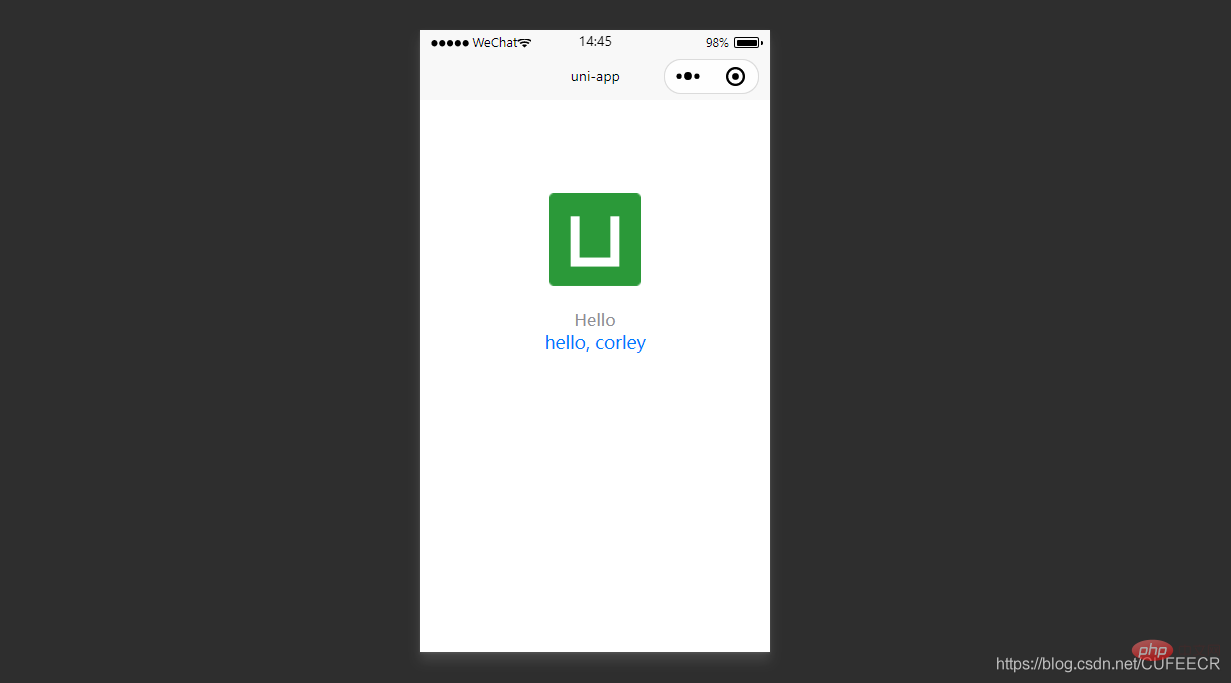
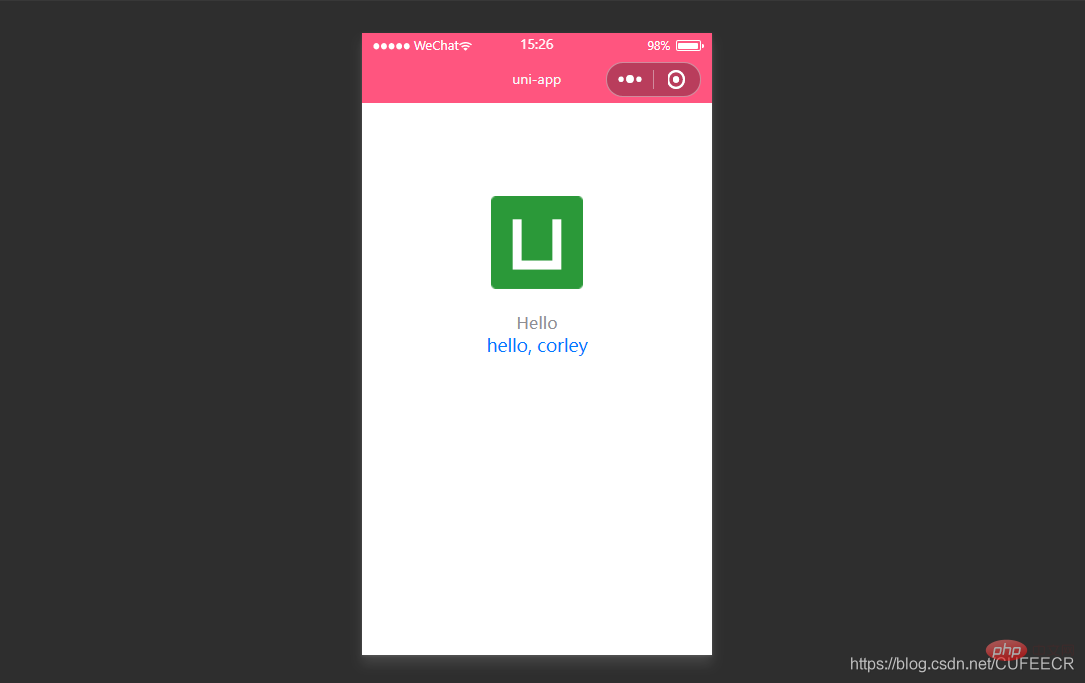
}</style>修改后重新编译运行后,微信开发者工具模拟器的小程序页面如下: 可以看到,App.vue中定义的样式对index页面产生了效果。 (2)style <view style="color:{{color}};" />4.选择器 目前支持的选择器有:
5.全局样式与局部样式 定义在 App.vue 中的样式为全局样式,作用于每一个页面,如前面在App.vue中定义的全局样式对index页面也有效; 二、配置文件 uni-app中一般以json的形式定义配置文件,如pages.json、manifest.json等,其中pages.json更偏向小程序,manifest.json更偏向App。 1.页面配置pages.json pages.json文件用来对uni-app进行全局配置,主要对接小程序,决定页面文件的路径、窗口表现、设置多标签等。 pages.json常见配置项列表如下:
一个包含了上述所有配置选项的pages.json示例如下: {
"pages": [{
"path": "pages/component/index",
"style": {
"navigationBarTitleText": "组件"
}
}, {
"path": "pages/API/index",
"style": {
"navigationBarTitleText": "接口"
}
}, {
"path": "pages/component/view/index",
"style": {
"navigationBarTitleText": "view"
}
}],
"globalStyle": {
"navigationBarTextStyle": "black",
"navigationBarTitleText": "演示",
"navigationBarBackgroundColor": "#F8F8F8",
"backgroundColor": "#F8F8F8"
},
"tabBar": {
"color": "#7A7E83",
"selectedColor": "#3cc51f",
"borderStyle": "black",
"backgroundColor": "#ffffff",
"list": [{
"pagePath": "pages/component/index",
"iconPath": "static/image/icon_component.png",
"selectedIconPath": "static/image/icon_component_HL.png",
"text": "组件"
}, {
"pagePath": "pages/API/index",
"iconPath": "static/image/icon_API.png",
"selectedIconPath": "static/image/icon_API_HL.png",
"text": "接口"
}]
},
"condition" : {
"current": 0,
"list": [
{
"name": "",
"path": "",
"query": ""
}
]
}}下面进一步解释各配置项的含义。 globalStyle 用于设置应用的状态栏、导航条、标题、窗口背景色等,对所有页面生效。
说明: pages.json修改如下: {
"pages": [ //pages数组中第一项表示应用启动页,参考:https://uniapp.dcloud.io/collocation/pages
{
"path": "pages/index/index",
"style": {
"navigationBarTitleText": "uni-app"
}
}
],
"globalStyle": {
"navigationBarTextStyle": "white",
"navigationBarTitleText": "hello uniapp",
"navigationBarBackgroundColor": "#ff557f",
"backgroundColor": "#fffae8"
},
"condition" : { //模式配置,仅开发期间生效
"current": 0, //当前激活的模式(list 的索引项)
"list": [
{
"name": "", //模式名称
"path": "", //启动页面,必选
"query": "" //启动参数,在页面的onLoad函数里面得到
}
]
}}显示: 显然,导航栏的背景颜色已经生效。 pages 接收一个数组,来指定应用由哪些页面组成。每一项代表对应页面的信息,应用中新增、减少或修改页面,都需要对pages数组进行同步修改。 说明: 新建一个页面过程如下: <template>
<view class="content">
about... </view></template><script>
export default {
data() {
return {
title: 'About'
}
},
onLoad() {
},
methods: {
}
}</script><style>
.content {
display: flex;
flex-direction: column;
align-items: center;
justify-content: center;
}
.logo {
height: 200rpx;
width: 200rpx;
margin-top: 200rpx;
margin-left: auto;
margin-right: auto;
margin-bottom: 50rpx;
}
.text-area {
display: flex;
justify-content: center;
}
.title {
font-size: 36rpx;
color: #8f8f94;
}</style>将其注册到pages.json如下: {
"pages": [ //pages数组中第一项表示应用启动页
{
"path": "pages/index/index",
"style": {
"navigationBarTitleText": "Uni Index"
}
},
{
"path": "pages/about/about",
"style": {
"navigationBarTitleText": "Uni About"
}
}
],
"globalStyle": {
"navigationBarTextStyle": "white",
"navigationBarTitleText": "hello uniapp",
"navigationBarBackgroundColor": "#ff557f",
"backgroundColor": "#fffae8"
},
"condition" : { //模式配置,仅开发期间生效
"current": 0, //当前激活的模式(list 的索引项)
"list": [
{
"name": "", //模式名称
"path": "", //启动页面,必选
"query": "" //启动参数,在页面的onLoad函数里面得到
}
]
}}其中,pages数组中的每一个page还可以通过style参数定义当前页面的样式,来设置每个页面的状态栏、导航条、标题、窗口背景色等,具体参数如下:
pages.json中给page定义style如下: {
"pages": [ //pages数组中第一项表示应用启动页,参考:https://uniapp.dcloud.io/collocation/pages
{
"path": "pages/index/index",
"style": {
"navigationBarTitleText": "Uni Index",
"backgroundColor": "#F0AD4E",
"navigationBarTextStyle":"black"
}
},
{
"path": "pages/about/about",
"style": {
"navigationBarTitleText": "Uni About"
}
}
],
"globalStyle": {
"navigationBarTextStyle": "white",
"navigationBarTitleText": "hello uniapp",
"navigationBarBackgroundColor": "#ff557f",
"backgroundColor": "#fffae8"
},
"condition" : { //模式配置,仅开发期间生效
"current": 0, //当前激活的模式(list 的索引项)
"list": [
{
"name": "", //模式名称
"path": "", //启动页面,必选
"query": "" //启动参数,在页面的onLoad函数里面得到
}
]
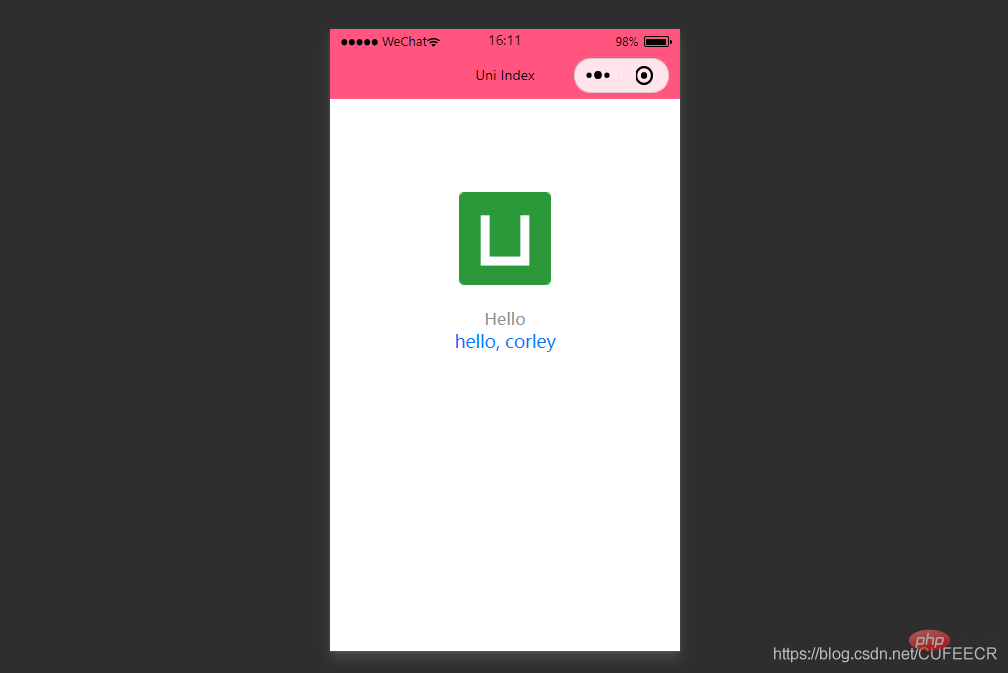
}}显示: tabBar 如果应用是一个多 tab 应用,可以通过 tabBar 配置项指定 tab 栏的表现,以及 tab 切换时显示的对应页。 常见参数和含义如下:
说明:
在static目录下新建imgs目录专门用于保存图片资源,下面放4张图片,再在pages.json中定义tabBar如下: {
"pages": [ //pages数组中第一项表示应用启动页,参考:https://uniapp.dcloud.io/collocation/pages
{
"path": "pages/index/index",
"style": {
"navigationBarTitleText": "Uni Index",
"backgroundColor": "#F0AD4E",
"navigationBarTextStyle":"black"
}
},
{
"path": "pages/about/about",
"style": {
"navigationBarTitleText": "Uni About"
}
}
],
"globalStyle": {
"navigationBarTextStyle": "white",
"navigationBarTitleText": "hello uniapp",
"navigationBarBackgroundColor": "#ff557f",
"backgroundColor": "#fffae8"
},
"tabBar": {
"color":"#F0AD4E",
"selectedColor":"#007AFF",
"backgroundColor":"#FFFFFF",
"list": [
{
"pagePath":"pages/index/index",
"iconPath":"static/imgs/index_0.png",
"selectedIconPath":"static/imgs/index_1.png",
"text": "首页"
},
{
"pagePath":"pages/about/about",
"iconPath":"static/imgs/about_0.png",
"selectedIconPath":"static/imgs/about_1.png",
"text":"关于我们"
}
]
},
"condition" : { //模式配置,仅开发期间生效
"current": 0, //当前激活的模式(list 的索引项)
"list": [
{
"name": "", //模式名称
"path": "", //启动页面,必选
"query": "" //启动参数,在页面的onLoad函数里面得到
}
]
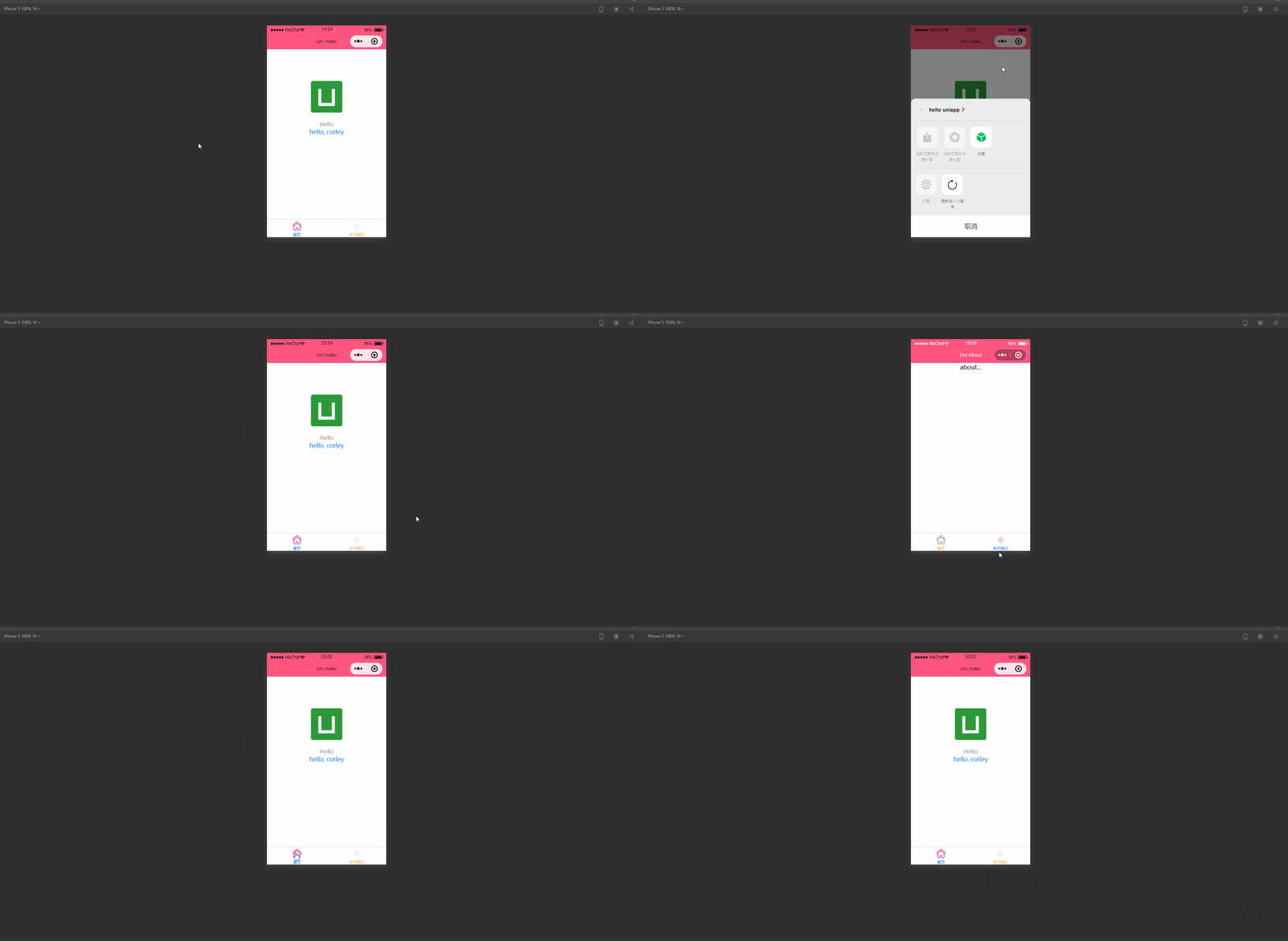
}}此时显示: 可以看到,此时已经可以显示不同的标签页,并且可以进行切换。
condition 启动模式配置,仅开发期间生效,用于模拟直达页面的场景。 属性和含义如下:
其中,list属性如下:
说明: 例如,pages.json如下: {
"pages": [ //pages数组中第一项表示应用启动页
{
"path": "pages/index/index",
"style": {
"navigationBarTitleText": "Uni Index",
"backgroundColor": "#F0AD4E",
"navigationBarTextStyle":"black"
}
},
{
"path": "pages/about/about",
"style": {
"navigationBarTitleText": "Uni About"
}
}
],
"globalStyle": {
"navigationBarTextStyle": "white",
"navigationBarTitleText": "hello uniapp",
"navigationBarBackgroundColor": "#ff557f",
"backgroundColor": "#fffae8"
},
"tabBar": {
"color":"#F0AD4E",
"selectedColor":"#007AFF",
"backgroundColor":"#FFFFFF",
"list": [
{
"pagePath":"pages/index/index",
"iconPath":"static/imgs/index_0.png",
"selectedIconPath":"static/imgs/index_1.png",
"text": "首页"
},
{
"pagePath":"pages/about/about",
"iconPath":"static/imgs/about_0.png",
"selectedIconPath":"static/imgs/about_1.png",
"text":"关于我们"
}
]
},
"condition": { //模式配置,仅开发期间生效
"current": 0, //当前激活的模式(list 的索引项)
"list": [{
"name": "index", //模式名称
"path": "pages/index/index", //启动页面,必选
"query": "interval=4000&autoplay=false" //启动参数,在页面的onLoad函数里面得到。
},
{
"name": "about", //模式名称
"path": "pages/about/about", //启动页面,必选
"query": "interval=4000&autoplay=false" //启动参数,在页面的onLoad函数里面得到。
}
]
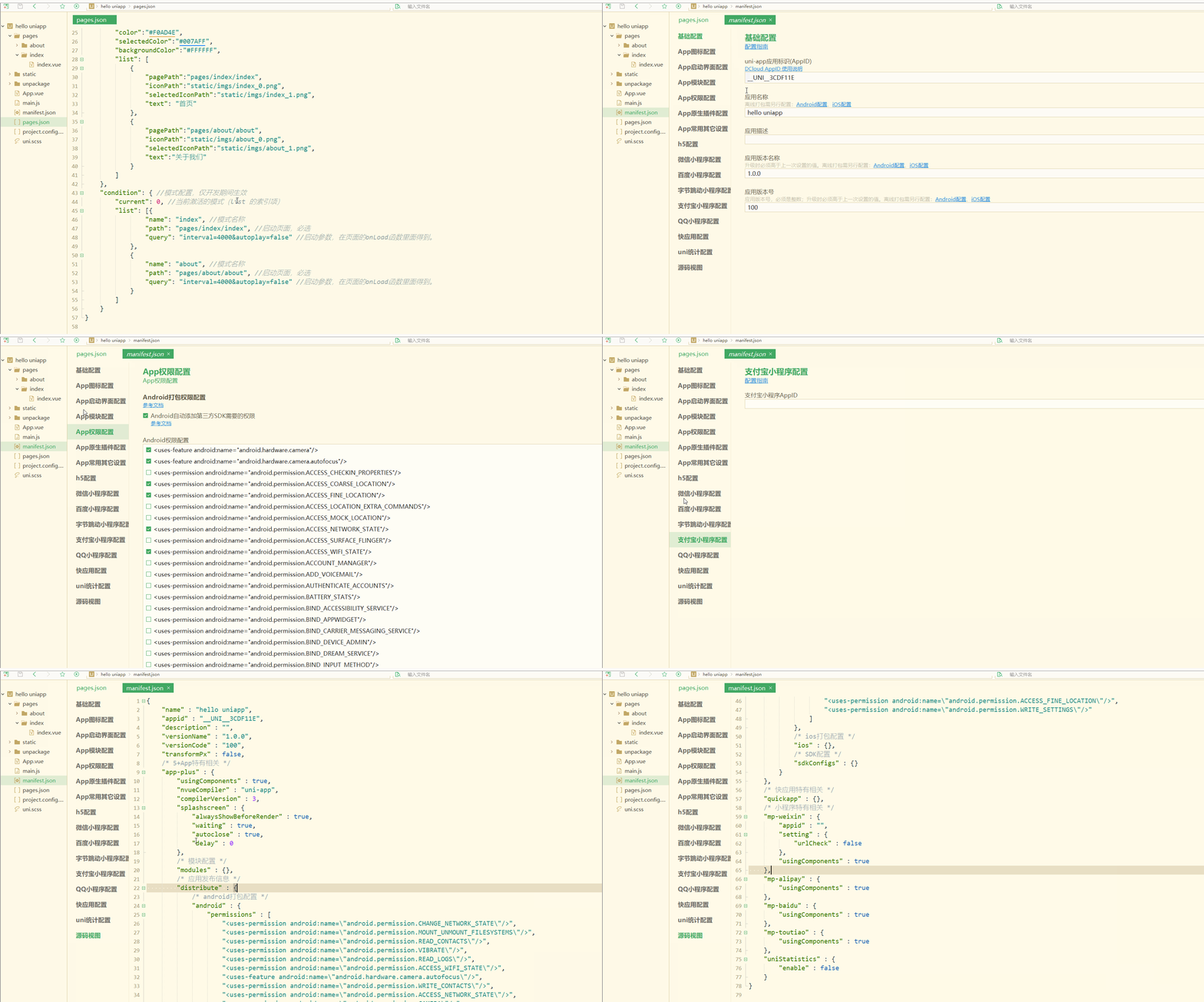
}}显示: 显然,此时可以在微信开发者工具根据定义的启动模式名称来选择页面,同时传递参数值。 2.显示配置manifest.json manifest.json文件是应用的配置文件,用于指定应用的名称、图标、权限等,更偏向于Android、iOS等App配置。 常见配置项列表如下:
其中,app-plus常见属性和含义如下:
其中,modules属性常见的可配置的权限模块如下:
distribute属性常见的配置如下:
说明: mp-weixin常见配置项和含义如下:
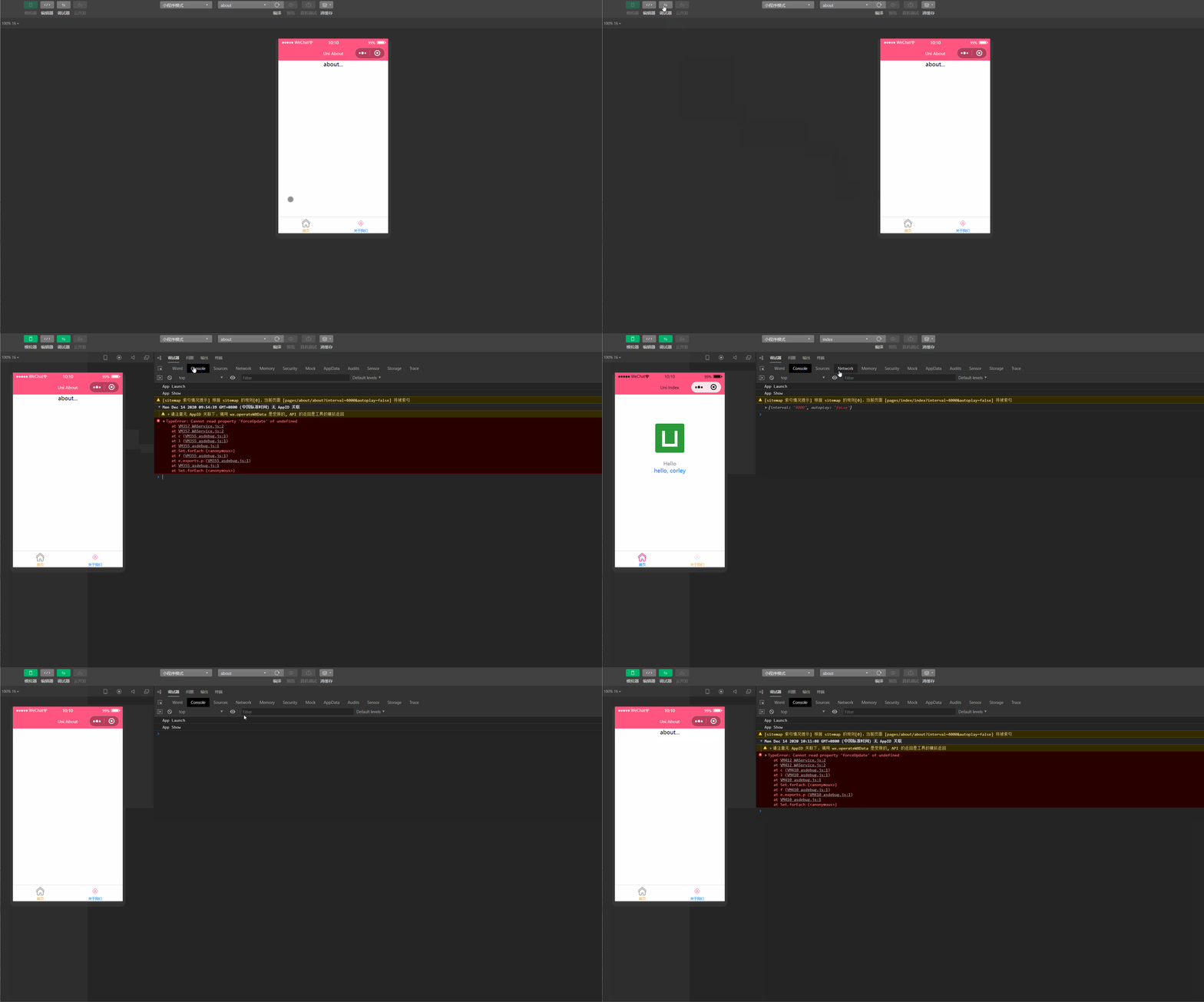
在BuilderX编辑器中查看manifest.json文件如下: 可以看到,除了通过源码视图定义manifest.json配置项,还可以使用可视化界面操作。 三、生命周期 不论是app还是小程序,生命周期是非常重要的特性,即对象从被创建到最后被销毁的整个过程。
index.vue如下: <template>
<view class="content">
<image class="logo" src="/static/logo.png"></image>
<view class="text-area">
<text class="title">{{title}}</text>
</view>
<view class="red">
hello, corley </view>
</view></template><script>
export default {
data() {
return {
title: 'Hello'
}
},
onLoad() {
console.log('index onload')
},
onShow() {
console.log('index onshow')
},
onHide() {
console.log('index onhide')
},
methods: {
}
}</script><style>
.content {
display: flex;
flex-direction: column;
align-items: center;
justify-content: center;
}
.logo {
height: 200rpx;
width: 200rpx;
margin-top: 200rpx;
margin-left: auto;
margin-right: auto;
margin-bottom: 50rpx;
}
.text-area {
display: flex;
justify-content: center;
}
.title {
font-size: 36rpx;
color: #8f8f94;
}</style>about.vue如下; <template>
<view class="content">
about... </view></template><script>
export default {
data() {
return {
title: 'About'
}
},
onLoad() {
console.log('about onload')
},
onShow() {
console.log('about onshow')
},
methods: {
}
}</script><style>
.content {
display: flex;
flex-direction: column;
align-items: center;
justify-content: center;
}
.logo {
height: 200rpx;
width: 200rpx;
margin-top: 200rpx;
margin-left: auto;
margin-right: auto;
margin-bottom: 50rpx;
}
.text-area {
display: flex;
justify-content: center;
}
.title {
font-size: 36rpx;
color: #8f8f94;
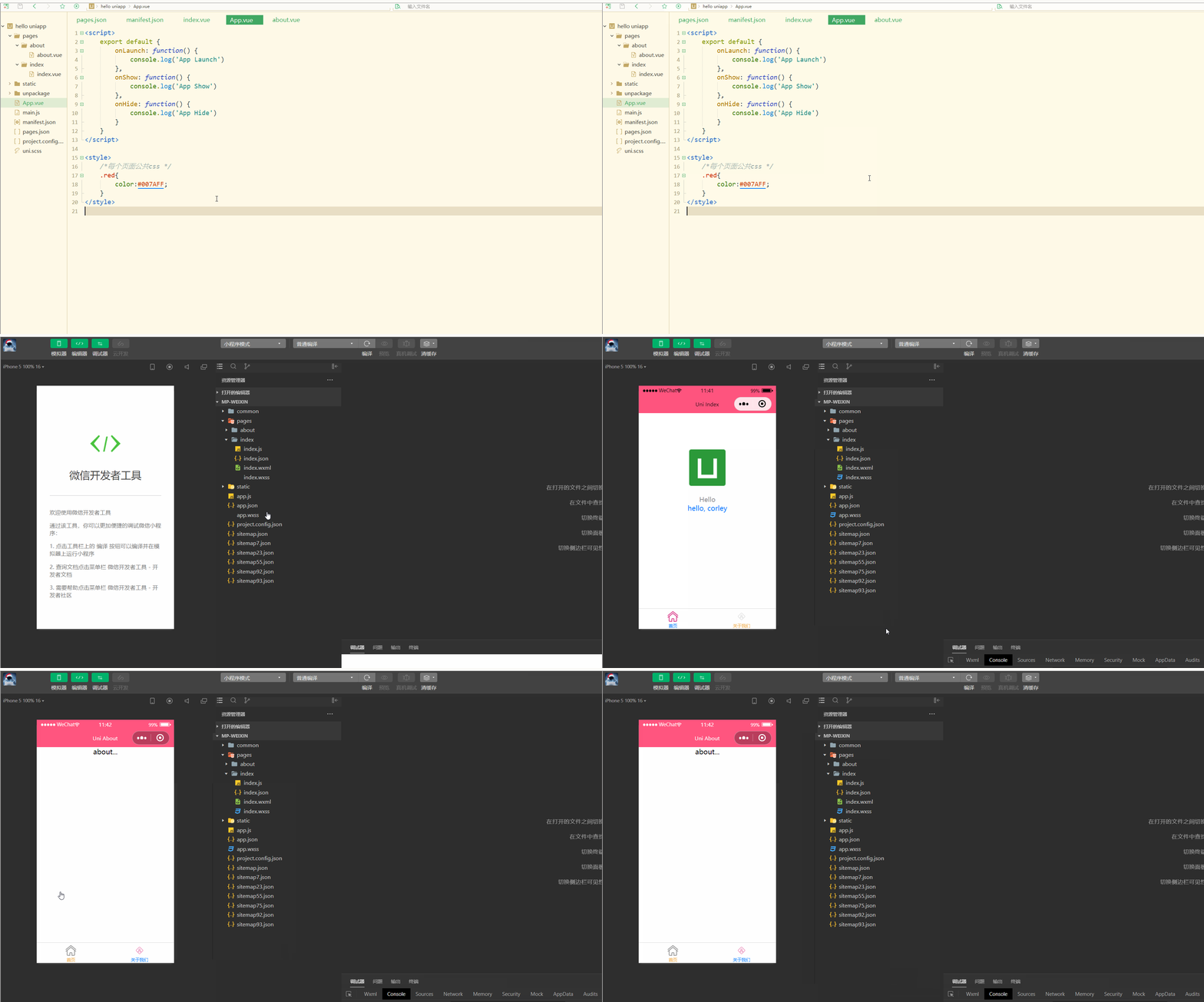
}</style>运行测试如下: 总结 uni-app对于样式有着自己的规定,比如尺寸单位,但是与HTML5也存在着很多共同点,体现在样式导入、选择器、全局样式与局部样式等方面。同时对于小程序和App有特定的配置文件进行配置。生命周期可用于定义页面在不同阶段、不同情境下的操作。 以上就是uni-app讲解 页面样式、配置文件和生命周期的详细内容,更多请关注模板之家(www.mb5.com.cn)其它相关文章! |


 963624318 ,在群文件夹uni-app入门教程中下载即可。