本篇文章带大家了解一下VuePress实战,介绍一下如果从零开发一个 VuePress 插件(代码复制插件),希望对大家有所帮助!
在搭建 VuePress 博客的过程中,也并不是所有的插件都能满足需求,所以本篇我们以实现一个代码复制插件为例,教大家如何从零实现一个 VuePress 插件。
本地开发
开发插件第一个要解决的问题就是如何本地开发,我们查看 VuePress 1.0 官方文档的「开发插件」章节,并没有找到解决方案,但在 VuePress 2.0 官方文档的「本地插件」里,却有写道:
推荐你直接将 配置文件 作为插件使用,因为几乎所有的插件 API 都可以在配置文件中使用,这在绝大多数场景下都更为方便。
但是如果你在配置文件中要做的事情太多了,最好还是将它们提取到单独的插件中,然后通过设置绝对路径或者通过 require 来使用它们:
module.exports = {
  plugins: [
    path.resolve(__dirname, './path/to/your-plugin.js'),
    require('./another-plugin'),
  ],
}
那就让我们开始吧!
初始化项目
我们在 .vuepress 文件夹下新建一个 vuepress-plugin-code-copy 的文件夹,用于存放插件相关的代码,然后命令行进入到该文件夹,执行 npm init,创建 package.json,此时文件的目录为:
.vuepress
├─ vuepress-plugin-code-copy
│  └─ package.json
└─ config.js
我们在 vuepress-plugin-code-copy下新建一个 index.js 文件,参照官方文档插件示例中的写法,我们使用返回对象的函数形式,这个函数接受插件的配置选项作为第一个参数、包含编译期上下文的 ctx 对象作为第二个参数:
module.exports = (options, ctx) => {
   return {
      // ...
   }
}
再参照官方文档 Option API 中的 name,以及生命周期函数中的 ready 钩子,我们写一个初始的测试代码:
module.exports = (options, ctx) => {
    return {
        name: 'vuepress-plugin-code-copy',
        async ready() {
            console.log('Hello World!');
        }
    }
 }
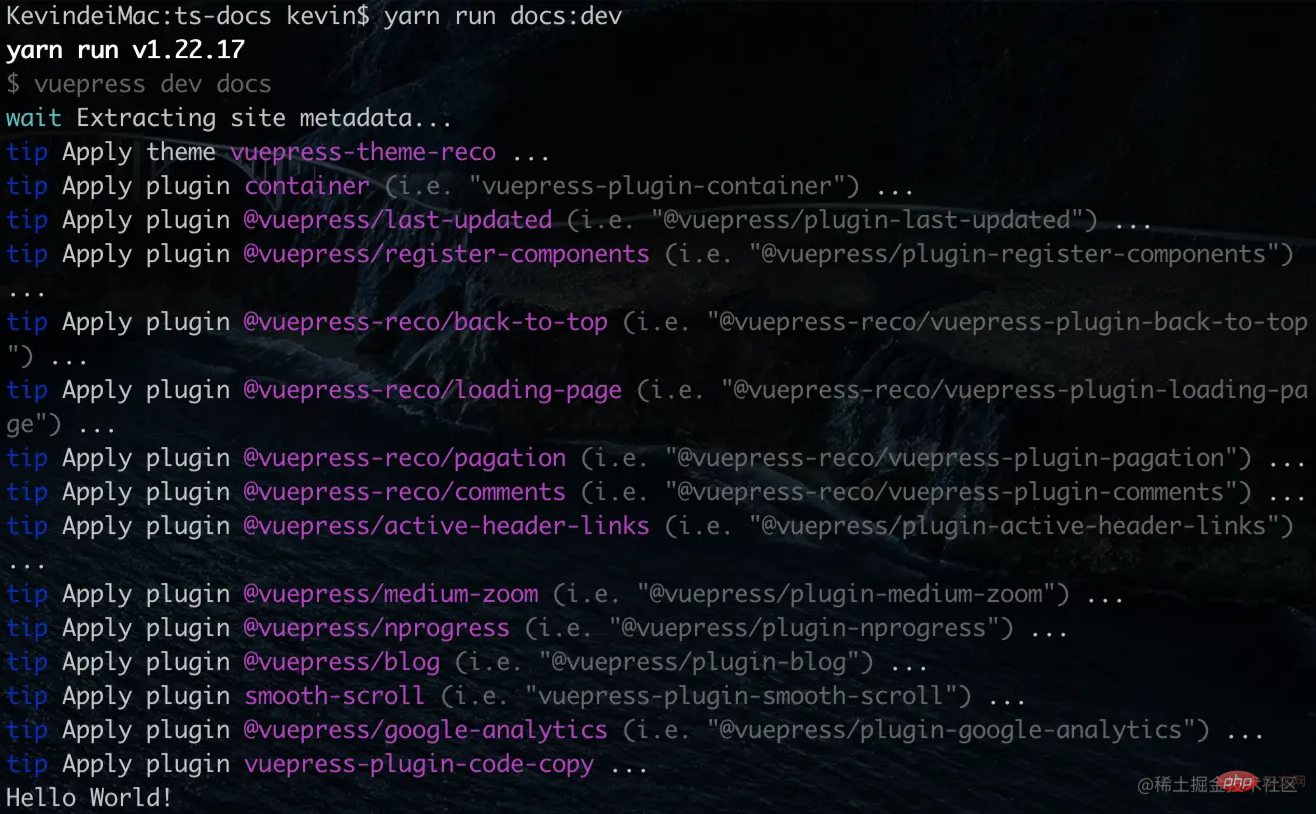
此时我们运行下 yarn run docs:dev,可以在运行过程中看到我们的插件名字和打印结果:
插件设计
现在我们可以设想下我们的代码复制插件的效果了,我想要实现的效果是:
在代码块的右下角有一个 Copy 文字按钮,点击后文字变为 Copied!然后一秒后文字重新变为 Copy,而代码块里的代码则在点击的时候复制到剪切板中,期望的表现效果如下:

插件开发
如果是在 Vue 组件中,我们很容易实现这个效果,在根组件 mounted 或者 updated的时候,使用 document.querySelector获取所有的代码块,插入一个按钮元素,再在按钮元素上绑定点击事件,当触发点击事件的时候,代码复制到剪切板,然后修改文字,1s 后再修改下文字。
那 VuePress 插件有方法可以控制根组件的生命周期吗?我们查阅下 VuePress 官方文档的 Option API,可以发现 VuePress 提供了一个 clientRootMixin 方法:
指向 mixin 文件的路径,它让你可以控制根组件的生命周期
看下示例代码:
// 插件的入口
const path = require('path')

module.exports = {
  clientRootMixin: path.resolve(__dirname, 'mixin.js')
}
// mixin.js
export default {
created () {},
mounted () {}
}这不就是我们需要的吗?那我们动手吧,修改 index.js的内容为:
const path = require('path');

module.exports = (options, ctx) => {
    return {
        name: 'vuepress-plugin-code-copy',
        clientRootMixin: path.resolve(__dirname, 'clientRootMixin.js')
    }
 }
在 vuepress-plugin-code-copy下新建一个 clientRootMixin.js文件,代码写入:
export default {
    updated() {
        setTimeout(() => {
            document.querySelectorAll('div[class*="language-"] pre').forEach(el => {
								console.log('one code block')
            })
        }, 100)
    }
}
刷新下浏览器里的页面,然后查看打印:

接下来就要思考如何写入按钮元素了。
当然我们可以使用原生 JavaScript 一点点的创建元素,然后插入其中,但我们其实是在一个支持 Vue 语法的项目里,其实我们完全可以创建一个 Vue 组件,然后将组件的实例挂载到元素上。那用什么方法挂载呢?
我们可以在 Vue 的全局 API 里,找到 Vue.extendAPI,看一下使用示例:
// 要挂载的元素
<div id="mount-point"></div>
// 创建构造器
var Profile = Vue.extend({
  template: '<p>{{firstName}} {{lastName}} aka {{alias}}</p>',
  data: function () {
    return {
      firstName: 'Walter',
      lastName: 'White',
      alias: 'Heisenberg'
    }
  }
})
// 创建 Profile 实例,并挂载到一个元素上。
new Profile().$mount('#mount-point')
结果如下:
// 结果为:
<p>Walter White aka Heisenberg</p>
那接下来,我们就创建一个 Vue 组件,然后通过 Vue.extend 方法,挂载到每个代码块元素中。
在 vuepress-plugin-code-copy下新建一个 CodeCopy.vue 文件,写入代码如下:
<template>
    <span class="code-copy-btn" @click="copyToClipboard">{{ buttonText }}</span>
</template>

<script>
export default {
    data() {
        return {
            buttonText: 'Copy'
        }
    },
    methods: {
        copyToClipboard(el) {
            this.setClipboard(this.code, this.setText);
        },
        setClipboard(code, cb) {
            if (navigator.clipboard) {
                navigator.clipboard.writeText(code).then(
                    cb,
                    () => {}
                )
            } else {
                let copyelement = document.createElement('textarea')
                document.body.appendChild(copyelement)
                copyelement.value = code
                copyelement.select()
                document.execCommand('Copy')
                copyelement.remove()
                cb()
            }
        },
        setText() {
            this.buttonText = 'Copied!'

            setTimeout(() => {
                this.buttonText = 'Copy'
            }, 1000)
        }
    }
}
</script>

<style scoped>
.code-copy-btn {
    position: absolute;
    bottom: 10px;
    right: 7.5px;
    opacity: 0.75;
    cursor: pointer;
    font-size: 14px;
}

.code-copy-btn:hover {
    opacity: 1;
}
</style>
该组件实现了按钮的样式和点击时将代码写入剪切版的效果,整体代码比较简单,就不多叙述了。
我们修改一下 clientRootMixin.js:
import CodeCopy from './CodeCopy.vue'
import Vue from 'vue'

export default {
    updated() {
        // 防止阻塞
        setTimeout(() => {
            document.querySelectorAll('div[class*="language-"] pre').forEach(el => {
              	// 防止重复写入
                if (el.classList.contains('code-copy-added')) return
                let ComponentClass = Vue.extend(CodeCopy)
                let instance = new ComponentClass()
                instance.code = el.innerText
                instance.$mount()
                el.classList.add('code-copy-added')
                el.appendChild(instance.$el)
            })
        }, 100)
    }
}
这里注意两点,第一是我们通过 el.innerText 获取要复制的代码内容,然后写入到实例的 code 属性,在组件中,我们是通过 this.code获取的。
第二是我们没有使用 $mount(element),直接传入一个要挂载的节点元素,这是因为 $mount() 的挂载会清空目标元素,但是这里我们需要添加到元素中,所以我们在执行 instance.$mount()后,通过 instance.$el获取了实例元素,然后再将其 appendChild 到每个代码块中。关于 $el的使用可以参考官方文档的 el 章节 。
此时,我们的文件目录如下:
.vuepress
├─ vuepress-plugin-code-copy
│  ├─ CodeCopy.vue
│  ├─ clientRootMixin.js
│  ├─ index.js
│  └─ package.json
└─ config.js
至此,其实我们就已经实现了代码复制的功能。
插件选项
有的时候,为了增加插件的可拓展性,会允许配置可选项,就比如我们不希望按钮的文字是 Copy,而是中文的「复制」,复制完后,文字变为 「已复制!」,该如何实现呢?
前面讲到,我们的 index.js导出的函数,第一个参数就是 options 参数:
const path = require('path');

module.exports = (options, ctx) => {
    return {
        name: 'vuepress-plugin-code-copy',
        clientRootMixin: path.resolve(__dirname, 'clientRootMixin.js')
    }
 }
我们在 config.js先写入需要用到的选项:
module.exports = {
    plugins: [
      [
        require('./vuepress-plugin-code-copy'),
        {
          'copybuttonText': '复制',
          'copiedButtonText': '已复制!'
        }
      ]
    ]
}
我们 index.js中通过 options参数可以接收到我们在 config.js 写入的选项,但我们怎么把这些参数传入 CodeCopy.vue 文件呢?
我们再翻下 VuePress 提供的 Option API,可以发现有一个 define API,其实这个 define 属性就是定义我们插件内部使用的全局变量。我们修改下 index.js:
const path = require('path');

module.exports = (options, ctx) => {
    return {
        name: 'vuepress-plugin-code-copy',
        define: {
            copybuttonText: options.copybuttonText || 'copy',
            copiedButtonText: options.copiedButtonText || "copied!"
        },
        clientRootMixin: path.resolve(__dirname, 'clientRootMixin.js')
    }
 }
现在我们已经写入了两个全局变量,组件里怎么使用呢?答案是直接使用!
我们修改下 CodeCopy.vue 的代码:
// ...
<script>
export default {
    data() {
        return {
            buttonText: copybuttonText
        }
    },
    methods: {
        copyToClipboard(el) {
            this.setClipboard(this.code, this.setText);
        },
        setClipboard(code, cb) {
            if (navigator.clipboard) {
                navigator.clipboard.writeText(code).then(
                    cb,
                    () => {}
                )
            } else {
                let copyelement = document.createElement('textarea')
                document.body.appendChild(copyelement)
                copyelement.value = code
                copyelement.select()
                document.execCommand('Copy')
                copyelement.remove()
                cb()
            }
        },
        setText() {
            this.buttonText = copiedButtonText

            setTimeout(() => {
                this.buttonText = copybuttonText
            }, 1000)
        }
    }
}
</script>
// ...
最终的效果如下:

代码参考
完整的代码查看:https://github.com/mqyqingfeng/Blog/tree/master/demos/VuePress/vuepress-plugin-code-copy
【相关推荐:vue.js视频教程】
以上就是【VuePress实战】手把手带你开发一个代码复制插件的详细内容,更多请关注模板之家(www.mb5.com.cn)其它相关文章!