uni-app教程栏目介绍getSystemInfo获取系统信息;getNetworkType获取网络状态;makePhoneCall拨打电话;scanCode扫码;vibrate设置振动;addPhoneContact添加手机联系人。
 推荐(免费):uni-app教程 文章目录
前言 本文主要介绍了接口的扩展应用:设备相关的接口包括获取系统信息、网络状态、拨打电话、扫码等;导航栏的动态设置;下拉刷新和上拉加载更多的实现;用条件编译实现小程序、APP等多端兼容;提示框、Loading、模态弹窗等的交互反馈。 一、设备相关 1.系统信息
success返回的常见参数和含义如下:
hello uniapp项目中,index.vue如下: <template>
<view>
<button type="primary" @click="getinfo">获取系统信息</button>
</view></template><script>
export default {
data() {
return {
}
},
onLoad() {
},
onShow() {
console.log('index onshow')
},
onHide() {
console.log('index onhide')
},
methods: {
getinfo: function(){
uni.getSystemInfo({
success:function(res){
console.log(res)
}
})
}
}
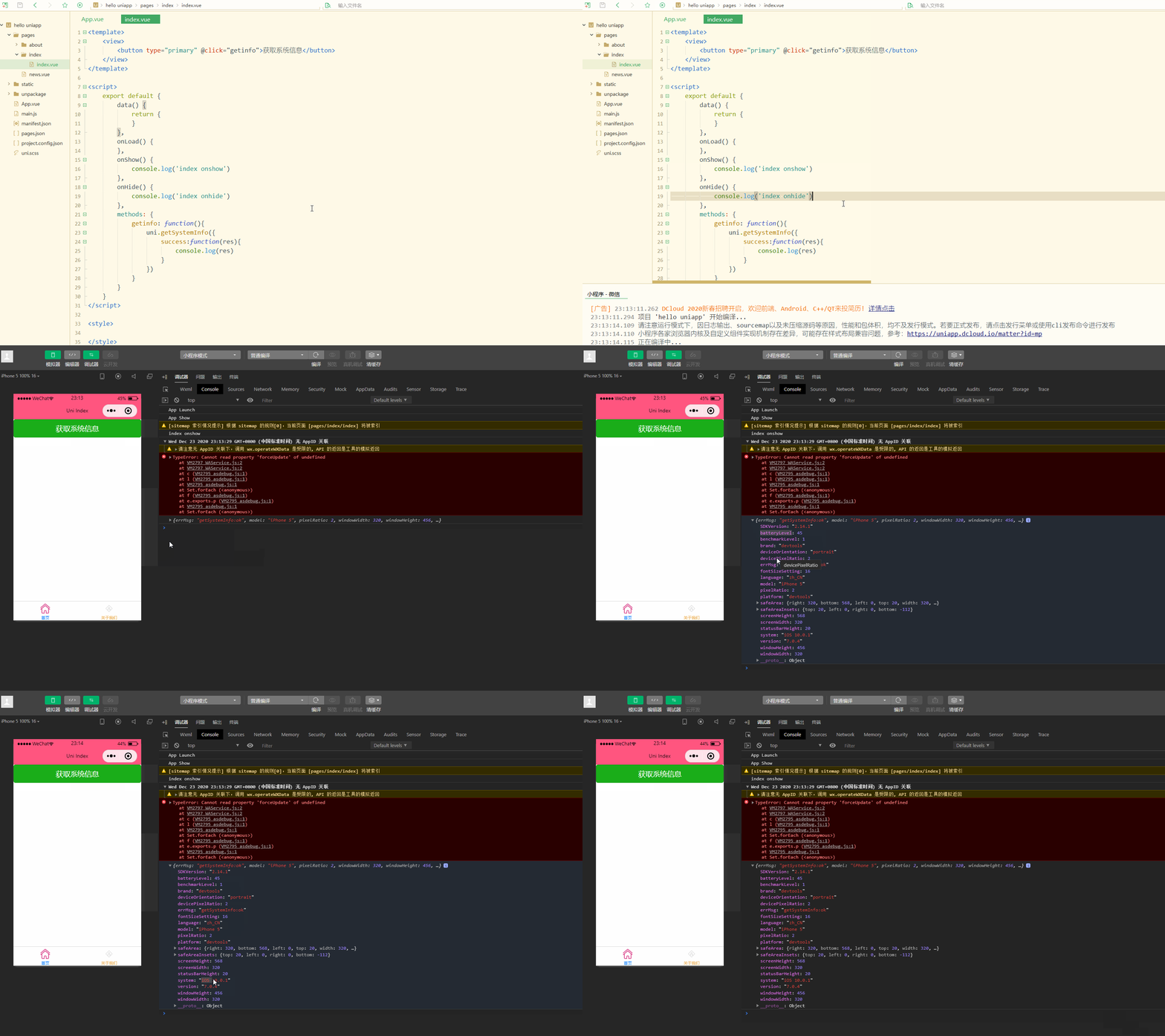
}</script><style></style>显示: 可以获取到当前设备比较全面的信息。 除了使用 2.网络状态
如下: <template>
<view>
<button type="primary" @click="getNetworkType">获取网络类型</button>
</view></template><script>
export default {
data() {
return {}
},
onLoad() {
},
onShow() {
console.log('index onshow')
},
onHide() {
console.log('index onhide')
},
methods: {
getNetworkType: function(){
uni.getNetworkType({
success:function(res){
console.log(res.networkType);
}
});
uni.onNetworkStatusChange(function(res){
console.log(res)
})
},
}
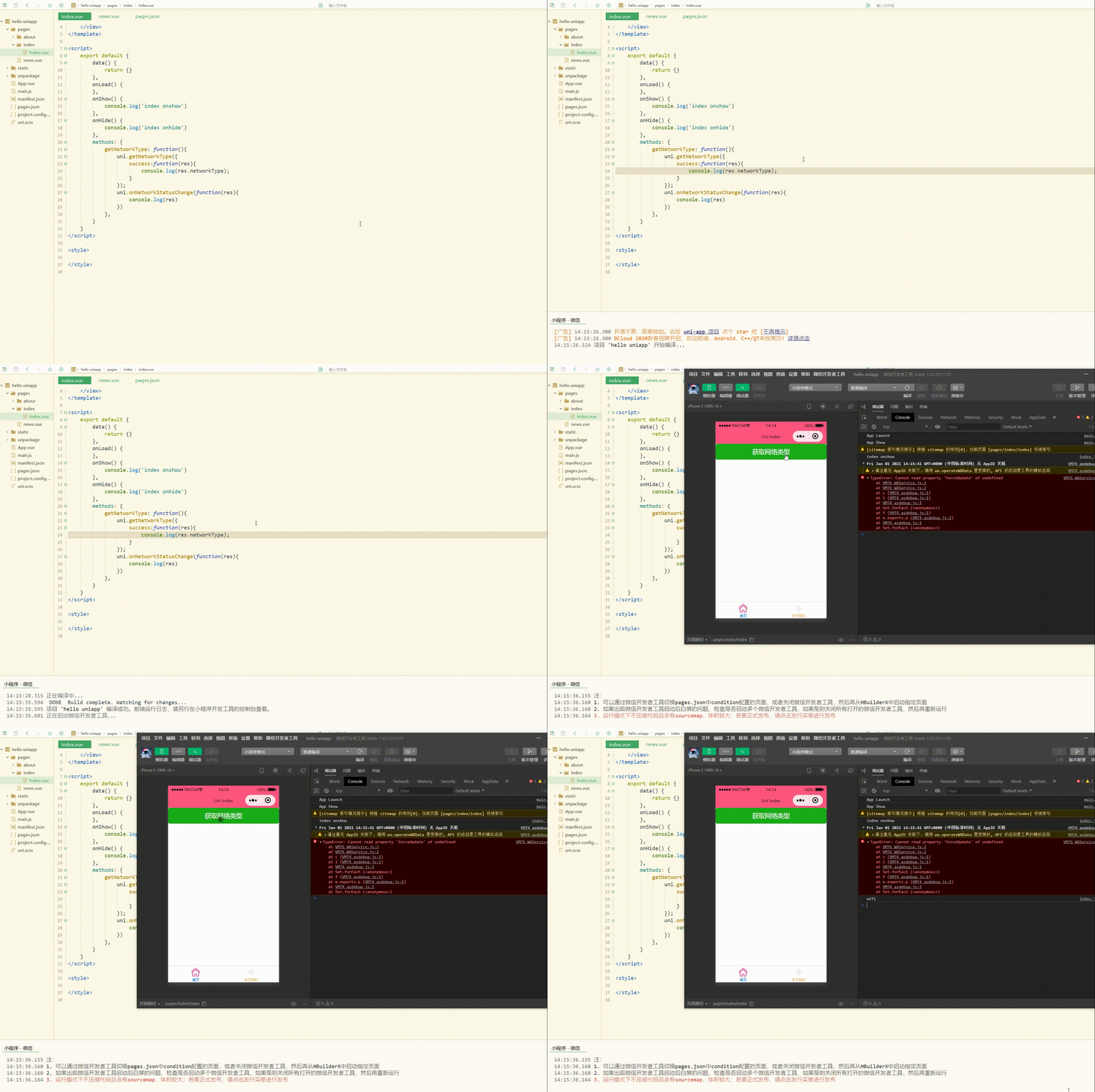
}</script><style></style>显示: 可以看到,获取到了当前的网络类型。 3.加速度计
4.拨打电话
OBJECT 参数如下:
如下: <template>
<view>
<button type="primary" @click="tel">拨打电话</button>
</view></template><script>
export default {
data() {
return {}
},
onLoad() {
},
onShow() {
console.log('index onshow')
},
onHide() {
console.log('index onhide')
},
methods: {
tel: function(){
uni.makePhoneCall({
phoneNumber: '10086'
})
},
}
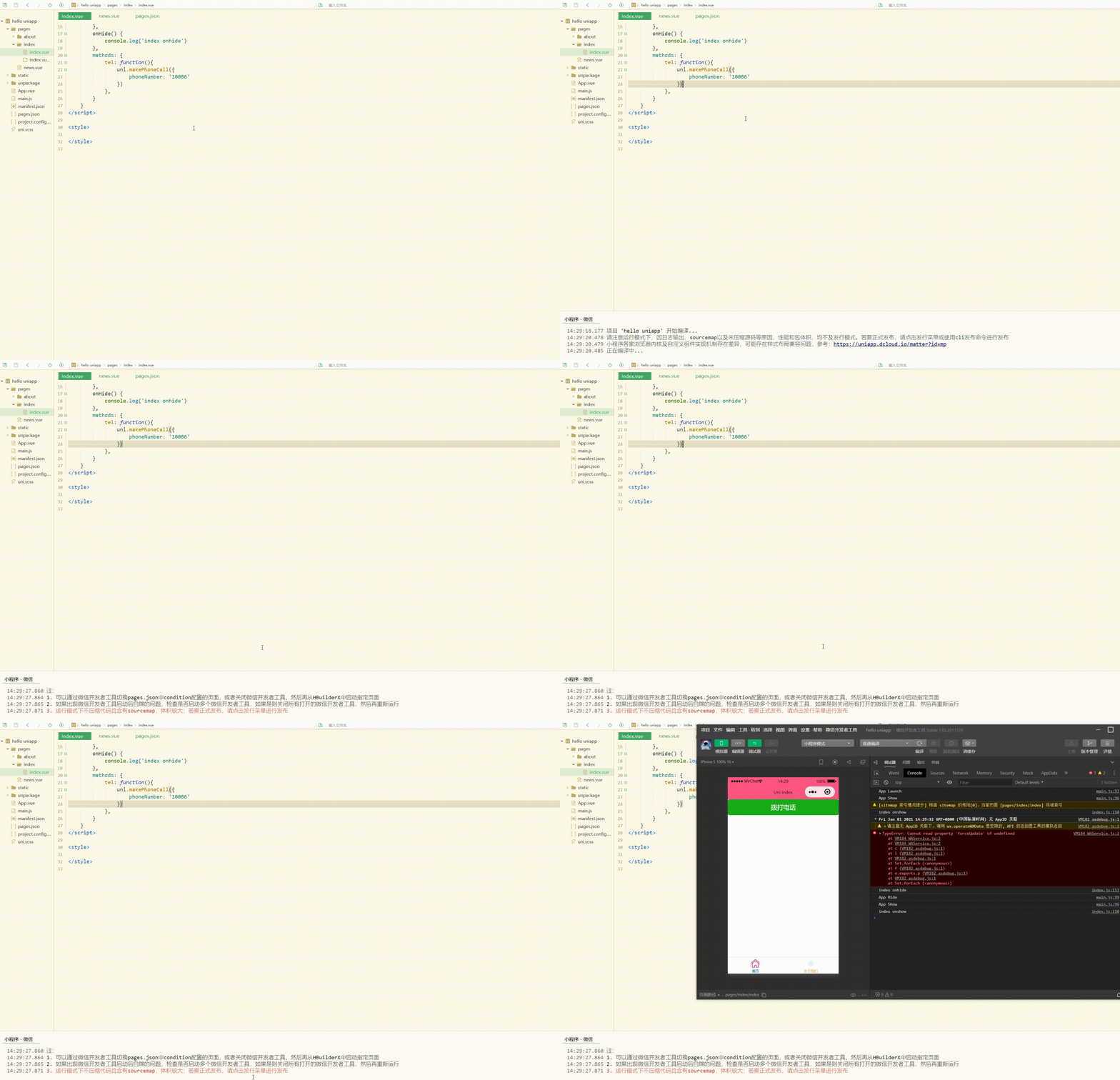
}</script><style></style>显示: 可以看到,模拟了拨打电话。 除了拨打电话,还可以实现发送短信等。 5.扫码
OBJECT 参数及其含义如下:
其中,success 返回参数如下:
简单使用如下: <template>
<view>
<button type="primary" @click="sca">扫描二维码</button>
</view></template><script>
export default {
data() {
return {}
},
onLoad() {
},
onShow() {
console.log('index onshow')
},
onHide() {
console.log('index onhide')
},
methods: {
sca: function(){
uni.scanCode({
success:function(res){
console.log(res)
}
})
},
}
}</script><style></style>6.剪贴板
如下: <template>
<view>
<button type="primary" @click="sca">复制文字</button>
<text>{{txt}}</text>
</view></template><script>
var _self;
export default {
data() {
return {
txt: "hello"
}
},
onLoad() {
_self = this
},
onShow() {
console.log('index onshow')
},
onHide() {
console.log('index onhide')
},
methods: {
sca: function(){
uni.setClipboardData({
data: 'https://blog.csdn.net/CUFEECR',
success:function(res){
console.log(res);
uni.getClipboardData({
success:function(gres){
console.log(gres.data)
_self.txt = gres.data }
})
}
})
},
}
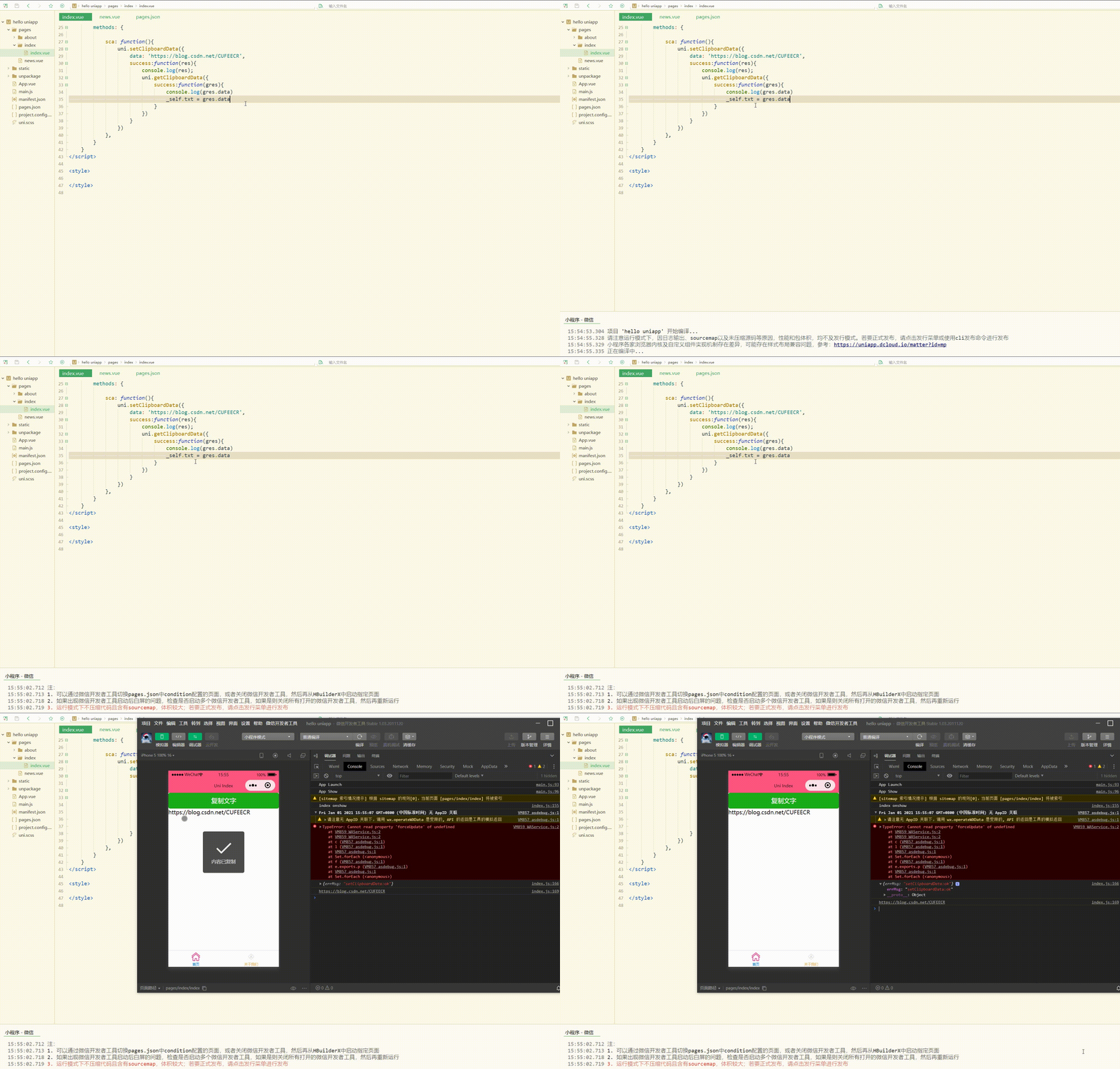
}</script><style></style>显示: 7.屏幕
例如: <template>
<view>
<button type="primary" @click="srn">设置屏幕亮度</button>
</view></template><script>
var _self;
export default {
data() {
return {
txt: "hello"
}
},
onLoad() {
_self = this
},
onShow() {
console.log('index onshow')
},
onHide() {
console.log('index onhide')
},
methods: {
srn: function(){
uni.setScreenBrightness({
value: 0.1,
success:function(){
console.log('set success')
}
})
},
}
}</script><style></style>7.振动
OBJECT 参数如下:
8.手机联系人
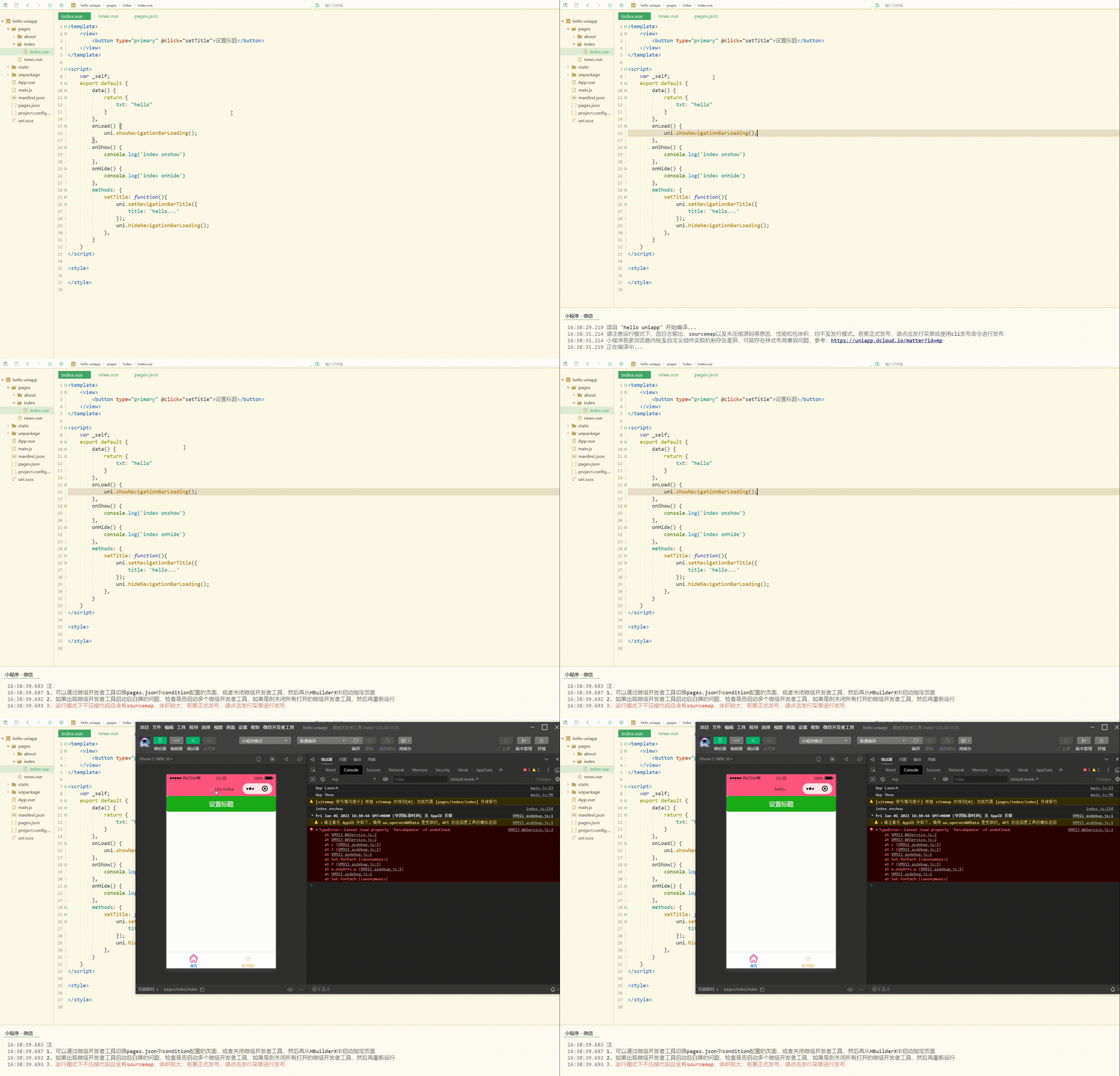
二、导航设置 之前导航栏是通过配置实现的,但是不够灵活,这时可以使用接口实现导航栏。
示例如下: <template>
<view>
<button type="primary" @click="setTitle">设置标题</button>
</view></template><script>
var _self;
export default {
data() {
return {
txt: "hello"
}
},
onLoad() {
uni.showNavigationBarLoading();
},
onShow() {
console.log('index onshow')
},
onHide() {
console.log('index onhide')
},
methods: {
setTitle: function(){
uni.setNavigationBarTitle({
title: 'hello...'
});
uni.hideNavigationBarLoading();
},
}
}</script><style></style>显示: 可以看到,实现了设置标题和控制加载。 三、下拉和上拉 1.下拉刷新
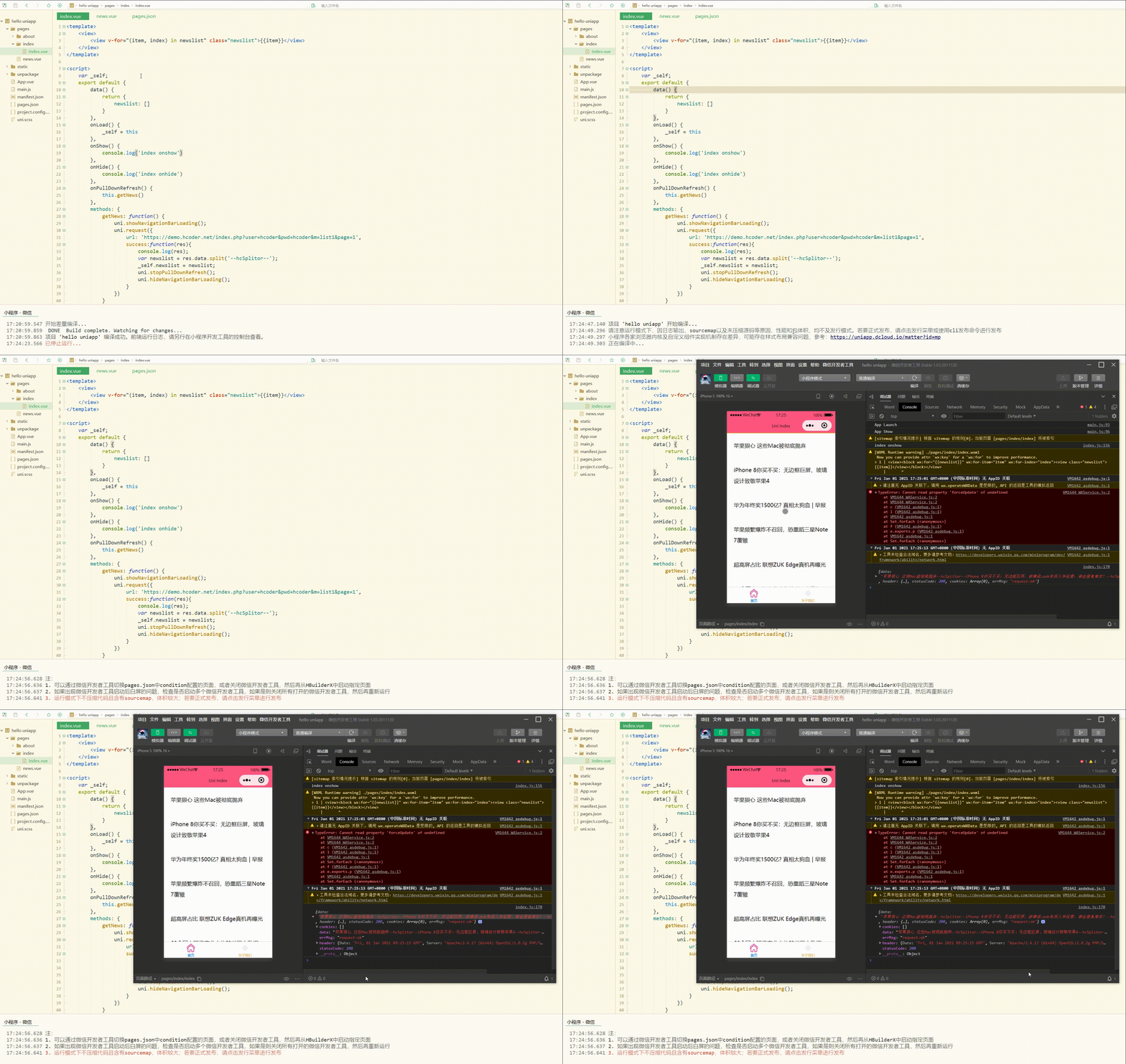
如下: <template>
<view>
<view v-for="(item, index) in newslist" class="newslist">{{item}}</view>
</view></template><script>
var _self;
export default {
data() {
return {
newslist: []
}
},
onLoad() {
_self = this
},
onShow() {
console.log('index onshow')
},
onHide() {
console.log('index onhide')
},
onPullDownRefresh() {
this.getNews()
},
methods: {
getNews: function() {
uni.showNavigationBarLoading();
uni.request({
url: 'https://demo.hcoder.net/index.php?user=hcoder&pwd=hcoder&m=list1&page=1',
success:function(res){
console.log(res);
var newslist = res.data.split('--hcSplitor--');
_self.newslist = newslist;
uni.stopPullDownRefresh();
uni.hideNavigationBarLoading();
}
})
}
}
}</script><style>
.newslist {
line-height: 2em;
padding: 20px;
}</style>显示: 可以看到,实现了下拉刷新加载数据。 2.案例–上拉加载更多 上拉加载更多有两种实现方式:
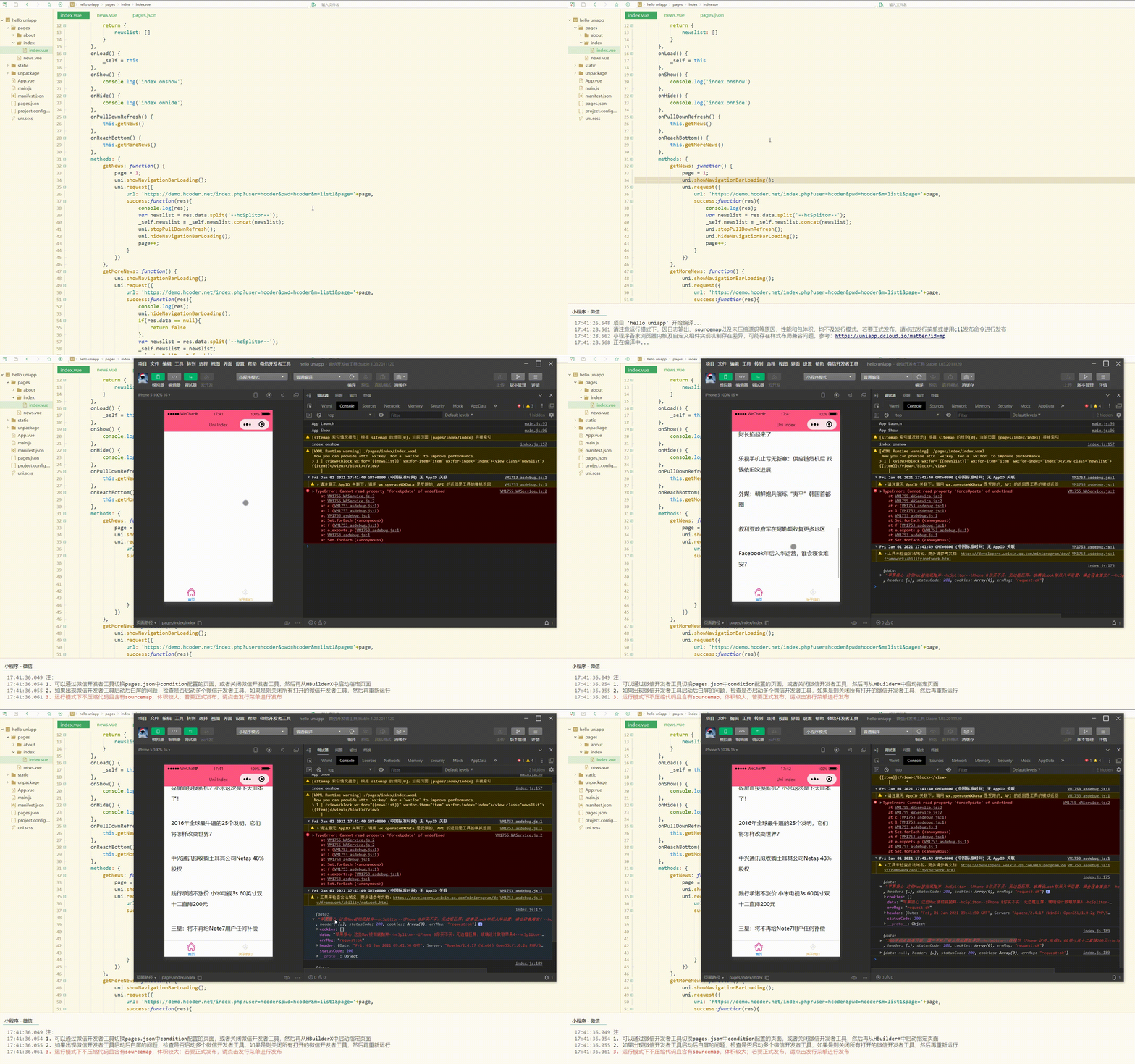
这里使用第二种方式,即生命周期函数 初步实现如下: <template>
<view>
<view v-for="(item, index) in newslist" class="newslist">{{item}}</view>
</view></template><script>
// 添加page全局变量
var _self, page;
export default {
data() {
return {
newslist: []
}
},
onLoad() {
_self = this
},
onShow() {
console.log('index onshow')
},
onHide() {
console.log('index onhide')
},
onPullDownRefresh() {
this.getNews()
},
onReachBottom() {
this.getMoreNews()
},
methods: {
getNews: function() {
page = 1;
uni.showNavigationBarLoading();
uni.request({
url: 'https://demo.hcoder.net/index.php?user=hcoder&pwd=hcoder&m=list1&page='+page,
success:function(res){
console.log(res);
var newslist = res.data.split('--hcSplitor--');
_self.newslist = _self.newslist.concat(newslist);
uni.stopPullDownRefresh();
uni.hideNavigationBarLoading();
page++;
}
})
},
getMoreNews: function() {
uni.showNavigationBarLoading();
uni.request({
url: 'https://demo.hcoder.net/index.php?user=hcoder&pwd=hcoder&m=list1&page='+page,
success:function(res){
console.log(res);
uni.hideNavigationBarLoading();
if(res.data == null){
return false
};
var newslist = res.data.split('--hcSplitor--');
_self.newslist = newslist;
uni.stopPullDownRefresh();
page++;
}
})
}
}
}</script><style>
.newslist {
line-height: 2em;
padding: 20px;
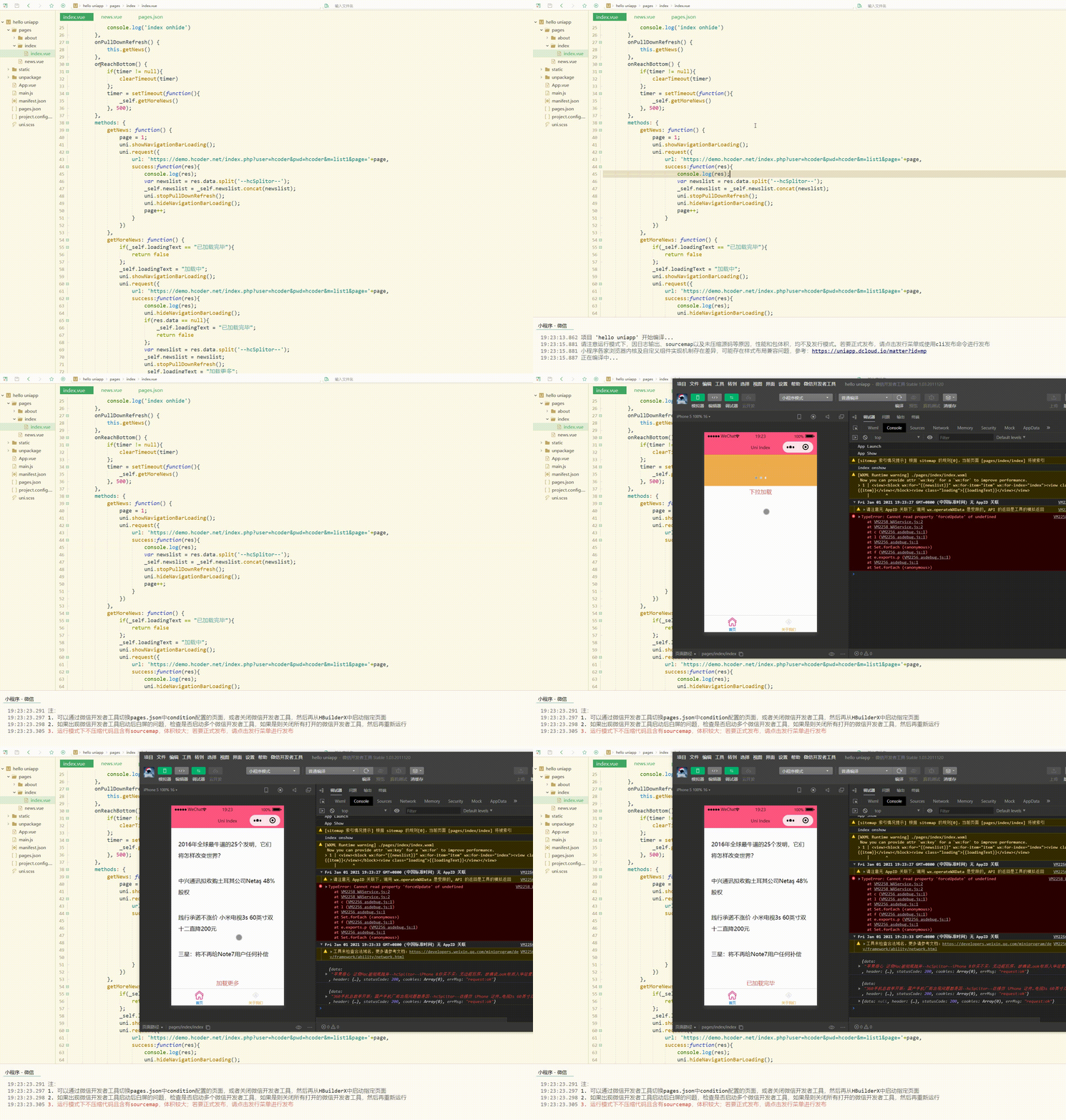
}</style>其中,添加全局变量page用于指定需要请求的数据的页数; 显示: 可以看到,加载了2页数据后,就不能再加载数据了。 此时还可以进行完善,如添加“加载更多”文本提示。 <template>
<view>
<view v-for="(item, index) in newslist" class="newslist">{{item}}</view>
<view class="loading">{{loadingText}}</view>
</view></template><script>
// 添加page、timer全局变量
var _self, page, timer = null;
export default {
data() {
return {
newslist: [],
loadingText: "下拉加载"
}
},
onLoad() {
_self = this
},
onShow() {
console.log('index onshow')
},
onHide() {
console.log('index onhide')
},
onPullDownRefresh() {
this.getNews()
},
onReachBottom() {
if(timer != null){
clearTimeout(timer)
};
timer = setTimeout(function(){
_self.getMoreNews()
}, 500);
},
methods: {
getNews: function() {
page = 1;
uni.showNavigationBarLoading();
uni.request({
url: 'https://demo.hcoder.net/index.php?user=hcoder&pwd=hcoder&m=list1&page='+page,
success:function(res){
console.log(res);
var newslist = res.data.split('--hcSplitor--');
_self.newslist = _self.newslist.concat(newslist);
uni.stopPullDownRefresh();
uni.hideNavigationBarLoading();
page++;
}
})
},
getMoreNews: function() {
if(_self.loadingText == "已加载完毕"){
return false
};
_self.loadingText = "加载中";
uni.showNavigationBarLoading();
uni.request({
url: 'https://demo.hcoder.net/index.php?user=hcoder&pwd=hcoder&m=list1&page='+page,
success:function(res){
console.log(res);
uni.hideNavigationBarLoading();
if(res.data == null){
_self.loadingText = "已加载完毕";
return false
};
var newslist = res.data.split('--hcSplitor--');
_self.newslist = newslist;
uni.stopPullDownRefresh();
_self.loadingText = "加载更多";
page++;
}
})
}
}
}</script><style>
.newslist {
line-height: 2em;
padding: 20px;
}
.loading {
line-height: 2em;
text-align: center;
color: #DD524D;
margin-top: 30px;
}</style>使用延时器让页面先渲染完,再加载数据; 显示: 显然,此时表现更好。 四、跨端兼容 很多时候,每个平台有自己的一些特性,小程序和APP上实现是有一定区别的,可能不一定能兼容所有平台。
对于API、组件、样式等,有不同的注释方式,具体如下:
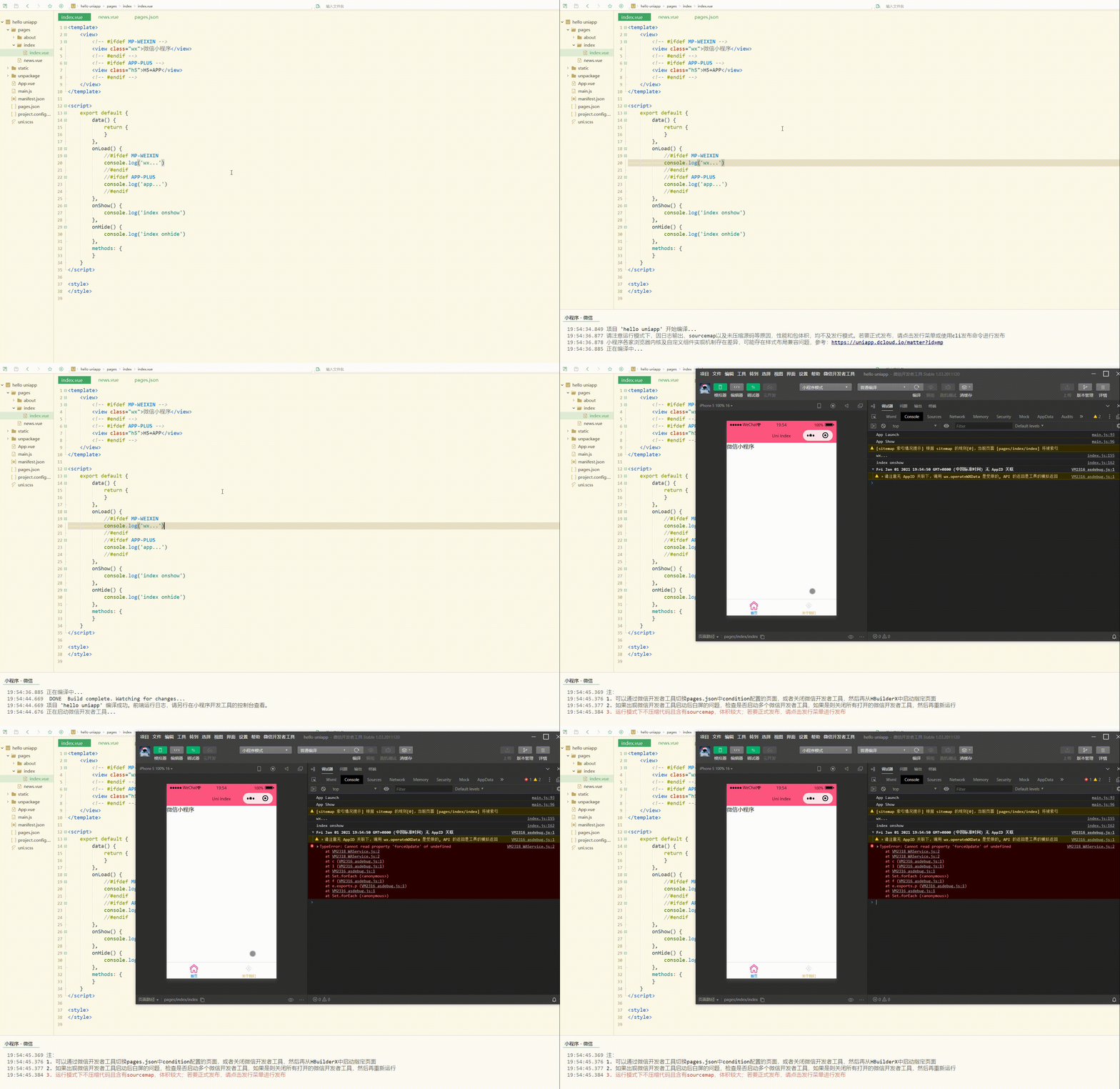
测试如下: <template>
<view>
<!-- #ifdef MP-WEIXIN -->
<view class="wx">微信小程序</view>
<!-- #endif -->
<!-- #ifdef APP-PLUS -->
<view class="h5">H5+APP</view>
<!-- #endif -->
</view></template><script>
export default {
data() {
return {
}
},
onLoad() {
//#ifdef MP-WEIXIN
console.log('wx...')
//#endif
//#ifdef APP-PLUS
console.log('app...')
//#endif
},
onShow() {
console.log('index onshow')
},
onHide() {
console.log('index onhide')
},
methods: {
}
}</script><style></style>显示: 显然,判断出了当前为微信小程序平台。 五、交互反馈 交互反馈包括提示框、加载等的设置。 1.uni.showToast(OBJECT)和uni.hideToast() 分别用于显示和隐藏消息提示框。
2.uni.showLoading(OBJECT)和uni.hideLoading() 前者用于显示 loading 提示框,需主动调用后者才能关闭提示框。
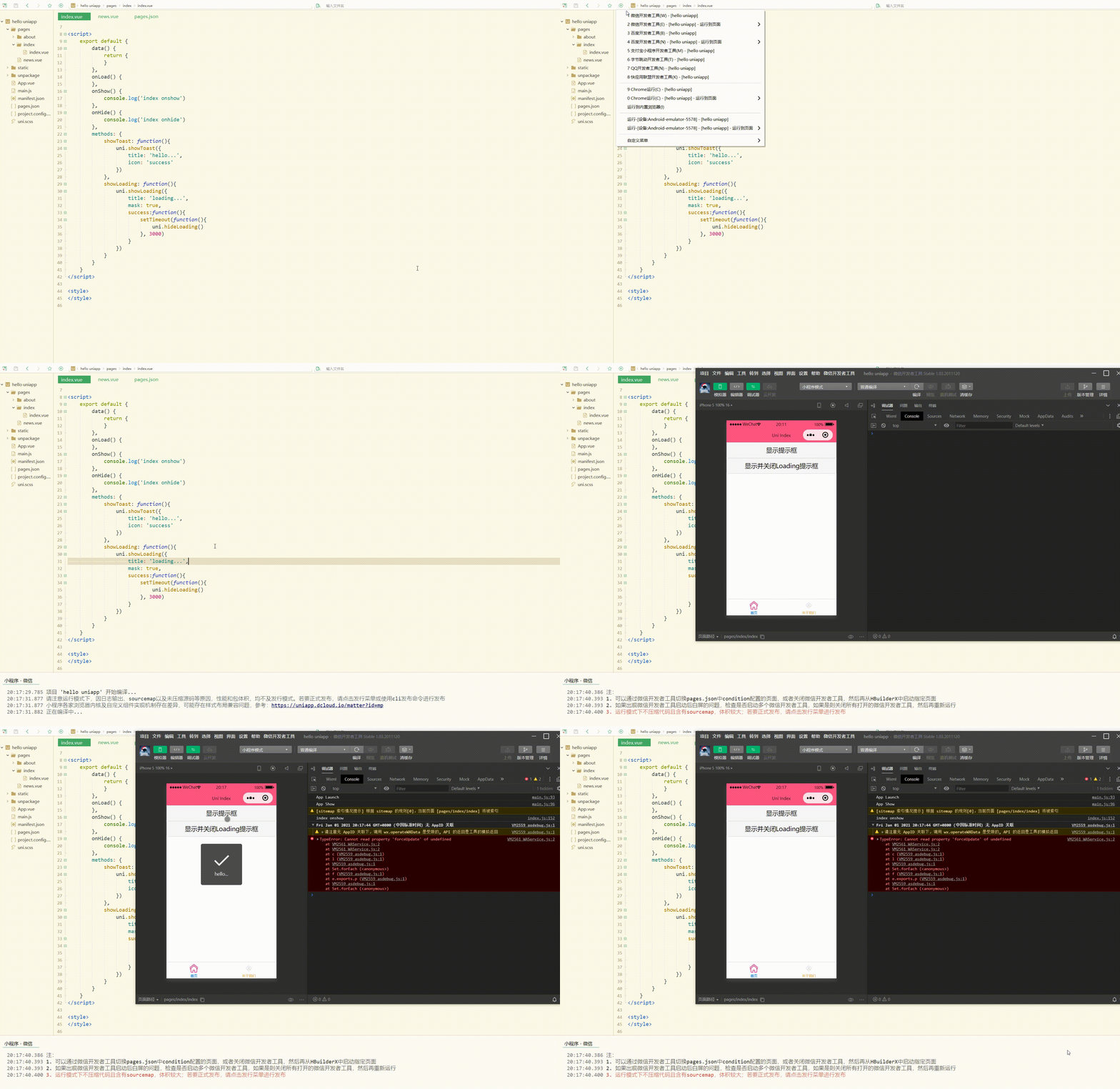
测试如下: <template>
<view>
<button type="default" @click="showToast">显示提示框</button>
<button type="default" @click="showLoading">显示并关闭Loading提示框</button>
</view></template><script>
export default {
data() {
return {
}
},
onLoad() {
},
onShow() {
console.log('index onshow')
},
onHide() {
console.log('index onhide')
},
methods: {
showToast: function(){
uni.showToast({
title: 'hello...',
icon: 'success'
})
},
showLoading: function(){
uni.showLoading({
title: 'loading...',
mask: true,
success:function(){
setTimeout(function(){
uni.hideLoading()
}, 3000)
}
})
}
}
}</script><style></style>显示: 可以看到,可正常显示、关闭提示框和loading。 3.uni.showModal(OBJECT) 用于显示模态弹窗,类似于标准 html 的消息框alert、confirm。
4.uni.showActionSheet(OBJECT) 用于显示操作菜单。
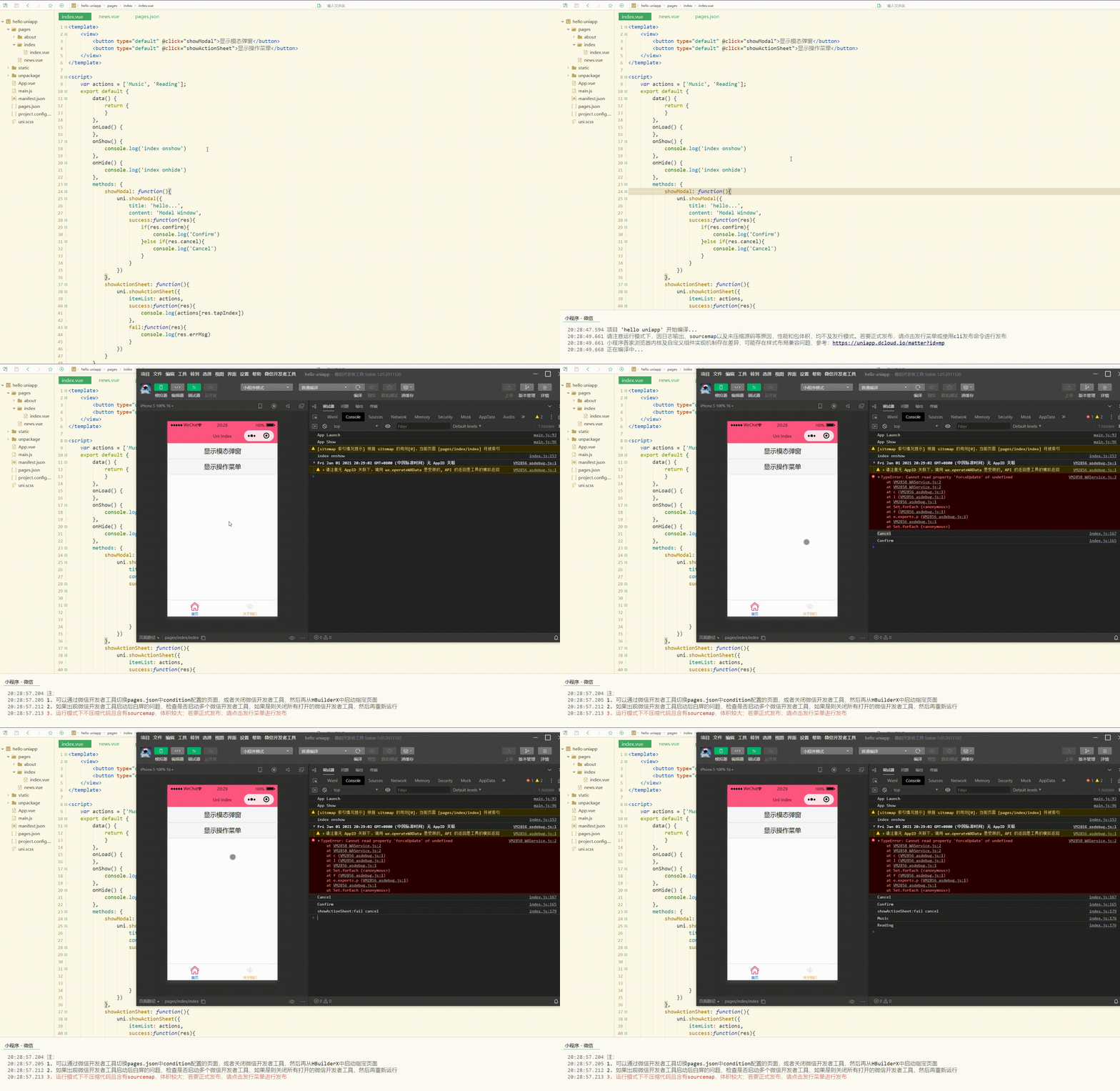
测试如下: <template>
<view>
<button type="default" @click="showModal">显示模态弹窗</button>
<button type="default" @click="showActionSheet">显示操作菜单</button>
</view></template><script>
var actions = ['Music', 'Reading'];
export default {
data() {
return {
}
},
onLoad() {
},
onShow() {
console.log('index onshow')
},
onHide() {
console.log('index onhide')
},
methods: {
showModal: function(){
uni.showModal({
title: 'hello...',
content: 'Modal Window',
success:function(res){
if(res.confirm){
console.log('Confirm')
}else if(res.cancel){
console.log('Cancel')
}
}
})
},
showActionSheet: function(){
uni.showActionSheet({
itemList: actions,
success:function(res){
console.log(actions[res.tapIndex])
},
fail:function(res){
console.log(res.errMsg)
}
})
}
}
}</script><style></style>显示: 可以看到,可以对模态弹窗和操作菜单进行操作。 总结
更多精品文章敬请关注uni-app开发教程栏目! 以上就是uni-app入门教程之 接口的扩展应用的详细内容,更多请关注模板之家(www.mb5.com.cn)其它相关文章! |