uni-app开发教程栏目介绍 一般在script语言块的data块中定义变量,在template语言块的视图中用{{}}调用变量,可以绑定基本变量和数组等,声明的变量都是响应式的,可以访问数组的某个元素、属性或者v-for遍历...
 推荐(免费):uni-app开发教程 文章目录
前言 本文的内容主要包含3部分:声明并渲染变量,包括条件渲染;通过class和style定义样式并动态绑定;事件的绑定,包含了事件传参。三部分均具有动态绑定的特性。 一、模板语法及数据绑定 1.声明和渲染变量 在使用变量前,需要先声明,一般在data块中进行声明,如hello uniapp项目中index.vue中定义的title变量如下: data() {
return {
title: 'Hello'
}},可以在script语言块的data块中定义多个变量,并且在template语言块的视图中用 先测试基础数据调用,index.vue如下: <template>
<view class="content">
<image class="logo" src="/static/logo.png"></image>
<view class="text-area">
<text class="title">{{title}}</text>
</view>
<view class="red">
hello-{{name}} </view>
</view></template><script>
export default {
data() {
return {
title: 'Hello',
name: 'Corley'
}
},
onLoad() {
console.log('index onload')
},
onShow() {
console.log('index onshow')
},
onHide() {
console.log('index onhide')
},
methods: {
}
}</script><style>
.content {
display: flex;
flex-direction: column;
align-items: center;
justify-content: center;
}
.logo {
height: 200rpx;
width: 200rpx;
margin-top: 200rpx;
margin-left: auto;
margin-right: auto;
margin-bottom: 50rpx;
}
.text-area {
display: flex;
justify-content: center;
}
.title {
font-size: 36rpx;
color: #8f8f94;
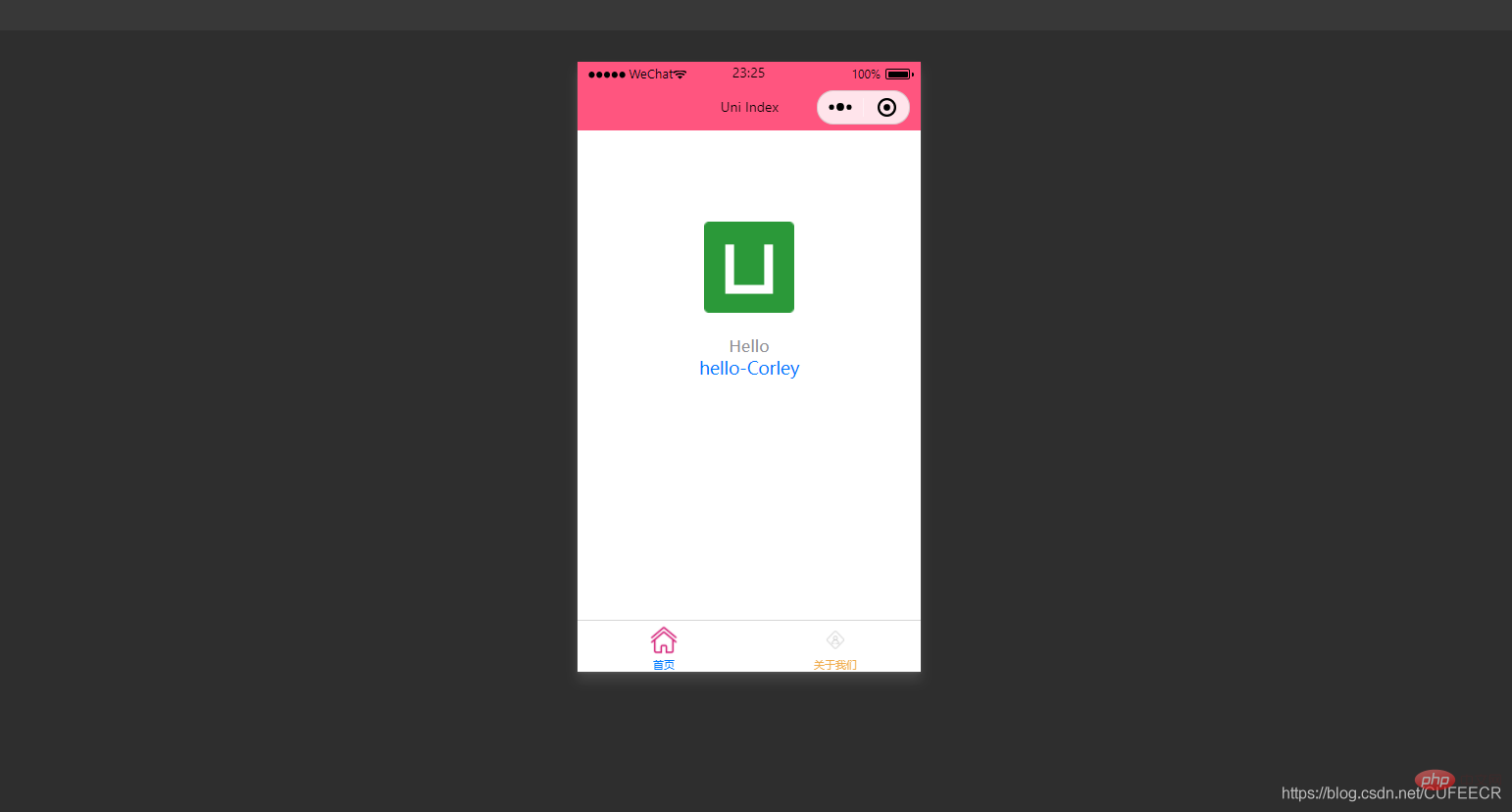
}</style>显示: 可以看到,定义的title和name变量渲染到了视图中。 需要注意,声明的变量都是响应式的,即视图中渲染的结果与变量本身是绑定的,会同步变化,index.vue如下: <template>
<view class="content">
<image class="logo" src="/static/logo.png"></image>
<view class="text-area">
<text class="title">{{title}}</text>
</view>
<view class="red">
hello-{{name}}-{{age}} </view>
</view></template><script>
var _self;
export default {
data() {
return {
title: 'Hello',
name: 'Corley',
age: 18
}
},
onLoad() {
_self = this;
setTimeout(function(){
_self.age = 20
}, 3000);
},
onShow() {
console.log('index onshow')
},
onHide() {
console.log('index onhide')
},
methods: {
}
}</script><style>
.content {
display: flex;
flex-direction: column;
align-items: center;
justify-content: center;
}
.logo {
height: 200rpx;
width: 200rpx;
margin-top: 200rpx;
margin-left: auto;
margin-right: auto;
margin-bottom: 50rpx;
}
.text-area {
display: flex;
justify-content: center;
}
.title {
font-size: 36rpx;
color: #8f8f94;
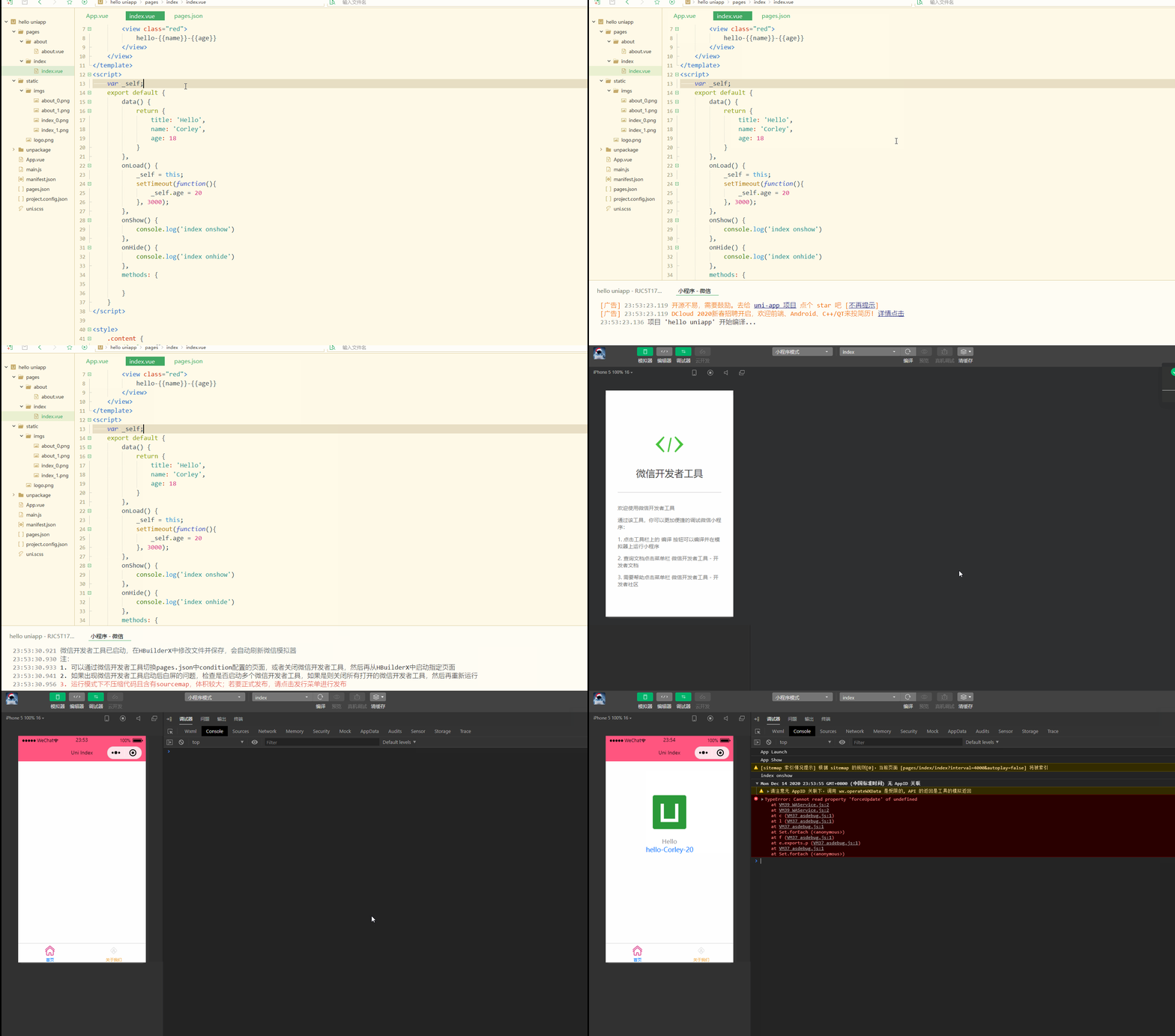
}</style>显示: 可以看到,在进入 还可以对数组进行数据绑定,可以获取数组的单个元素及其属性,如下: <template>
<view class="content">
<image class="logo" src="/static/logo.png"></image>
<view class="text-area">
<text class="title">{{title}}</text>
</view>
<view class="red">
{{students[0]}}<br>
{{students[0].name}} </view>
</view></template><script>
var _self;
export default {
data() {
return {
title: 'Hello',
name: 'Corley',
age: 18,
students: [{
name: "张三",
age: 18
},
{
name: "李四",
age: 20
}
]
}
},
onLoad() {
_self = this;
setTimeout(function() {
_self.age = 20
}, 3000);
},
onShow() {
console.log('index onshow')
},
onHide() {
console.log('index onhide')
},
methods: {
}
}</script><style>
.content {
display: flex;
flex-direction: column;
align-items: center;
justify-content: center;
}
.logo {
height: 200rpx;
width: 200rpx;
margin-top: 200rpx;
margin-left: auto;
margin-right: auto;
margin-bottom: 50rpx;
}
.text-area {
display: flex;
justify-content: center;
}
.title {
font-size: 36rpx;
color: #8f8f94;
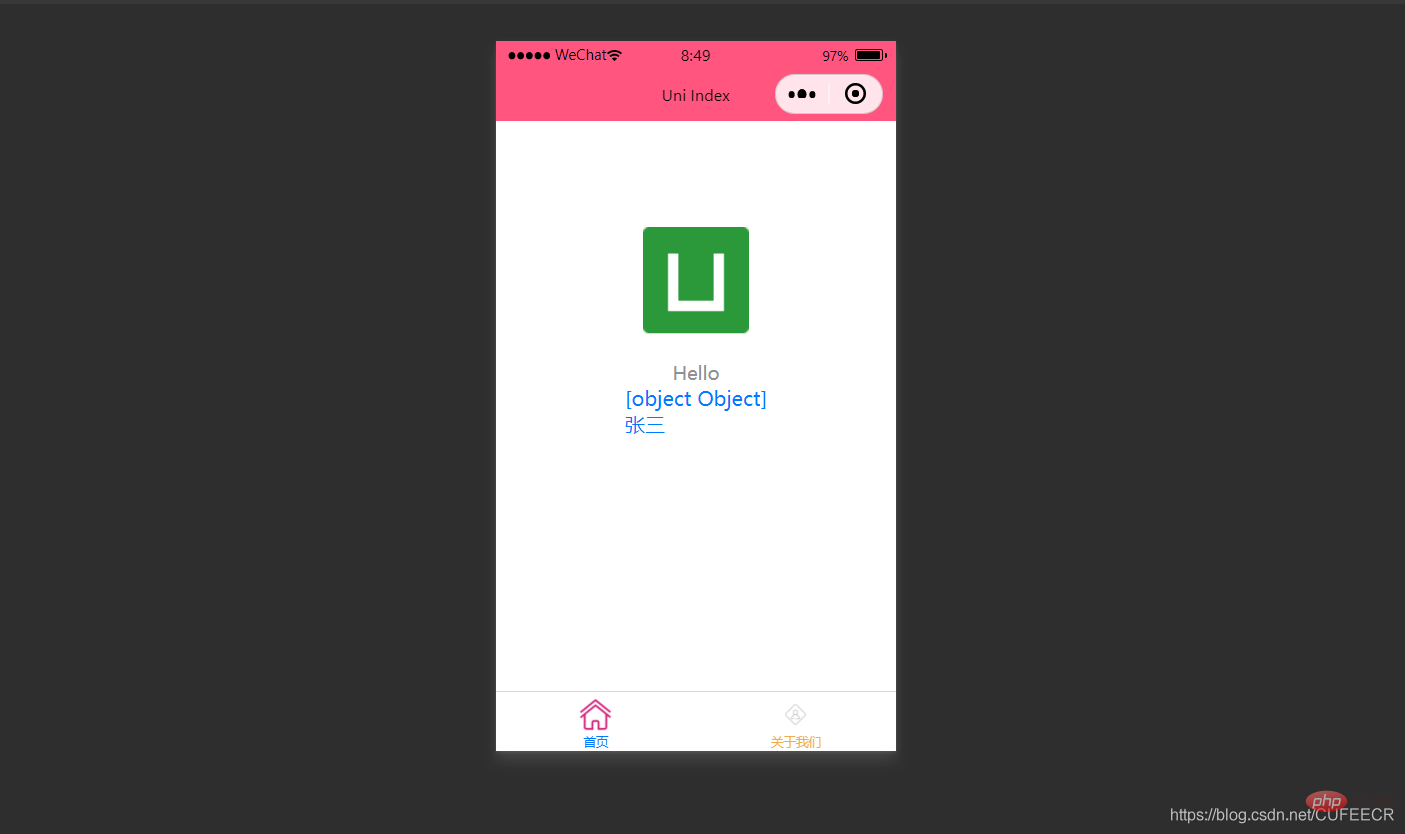
}</style>显示: 也可以使用循环来遍历数组,即使用 <template>
<view class="content">
<image class="logo" src="/static/logo.png"></image>
<view class="text-area">
<text class="title">{{title}}</text>
</view>
<view v-for="(item, index) in students">
{{index}} - {{item.name}} : {{item.age}} </view>
</view></template><script>
var _self;
export default {
data() {
return {
title: 'Hello',
name: 'Corley',
age: 18,
students: [{
name: "张三",
age: 18
},
{
name: "李四",
age: 20
}
]
}
},
onLoad() {
_self = this;
setTimeout(function() {
_self.age = 20
}, 3000);
},
onShow() {
console.log('index onshow')
},
onHide() {
console.log('index onhide')
},
methods: {
}
}</script><style>
.content {
display: flex;
flex-direction: column;
align-items: center;
justify-content: center;
}
.logo {
height: 200rpx;
width: 200rpx;
margin-top: 200rpx;
margin-left: auto;
margin-right: auto;
margin-bottom: 50rpx;
}
.text-area {
display: flex;
justify-content: center;
}
.title {
font-size: 36rpx;
color: #8f8f94;
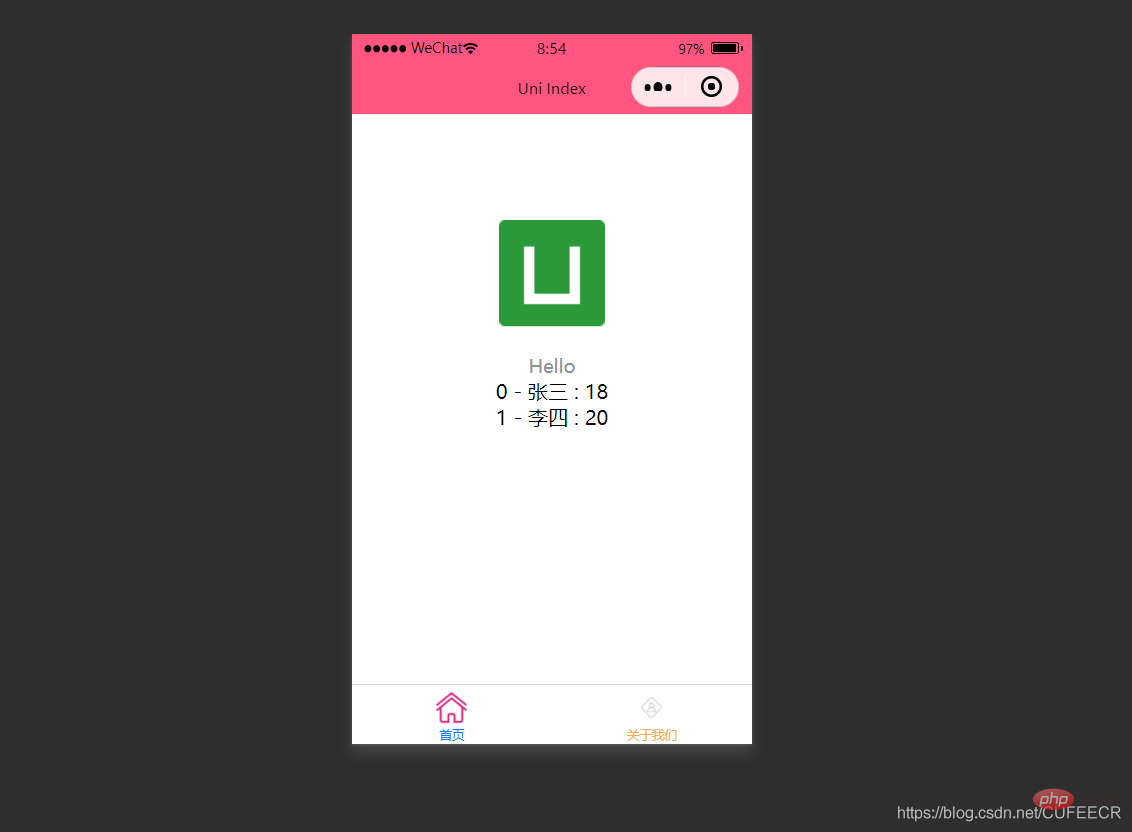
}</style>显示: 显然,此时遍历出了数组中的所有元素。 2.条件渲染 条件渲染是指满足某个条件才渲染某个元素,使用 如下: <template>
<view class="content">
<image class="logo" src="/static/logo.png"></image>
<view class="text-area">
<text class="title">{{title}}</text>
</view>
<view v-if="show1">
show1... </view>
<view v-if="show2">
show2... </view>
</view></template><script>
var _self;
export default {
data() {
return {
title: 'Hello',
name: 'Corley',
age: 18,
show1: true,
show2: false
}
},
onLoad() {
_self = this;
setTimeout(function() {
_self.age = 20
}, 3000);
},
onShow() {
console.log('index onshow')
},
onHide() {
console.log('index onhide')
},
methods: {
}
}</script><style>
.content {
display: flex;
flex-direction: column;
align-items: center;
justify-content: center;
}
.logo {
height: 200rpx;
width: 200rpx;
margin-top: 200rpx;
margin-left: auto;
margin-right: auto;
margin-bottom: 50rpx;
}
.text-area {
display: flex;
justify-content: center;
}
.title {
font-size: 36rpx;
color: #8f8f94;
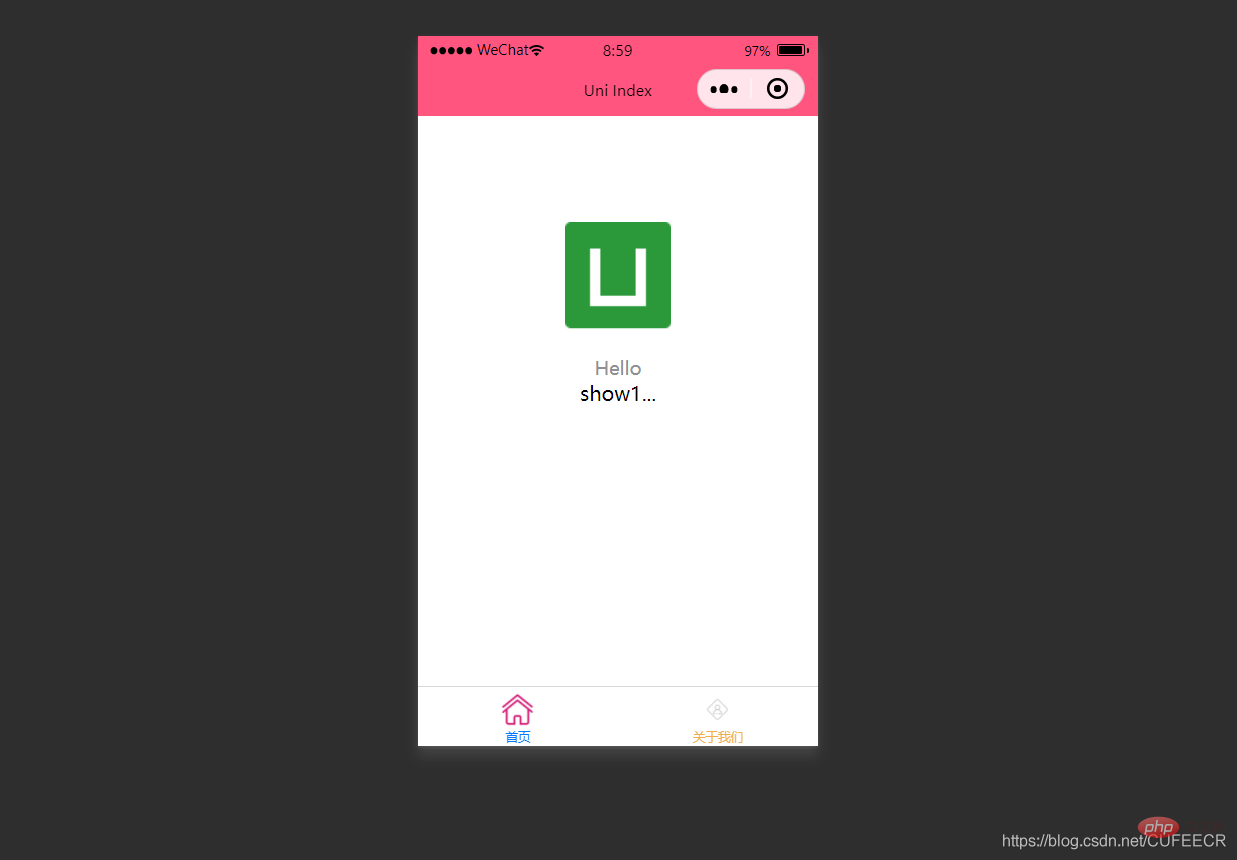
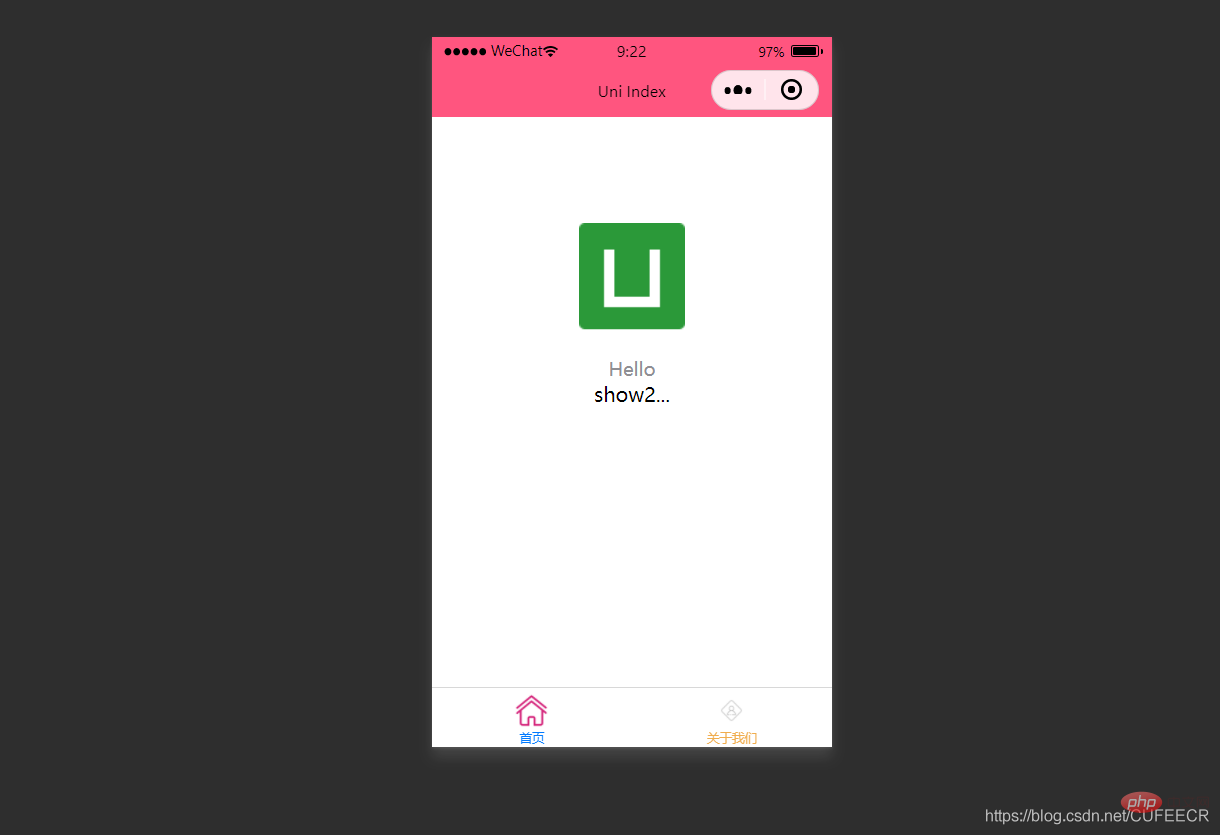
}</style>显示: 此时根据
<template>
	<view class="content">
		<image class="logo" src="/static/logo.png"></image>
		<view class="text-area">
			<text class="title">{{title}}</text>
		</view>
		<view :hidden="show1">
			show1...		</view>
		<view :hidden="show2">
			show2...		</view>
	</view></template><script>
	var _self;
	export default {
		data() {
			return {
				title: 'Hello',
				name: 'Corley',
				age: 18,
				show1: true,
				show2: false
			}
		},
		onLoad() {
			_self = this;
			setTimeout(function() {
				_self.age = 20
			}, 3000);
		},
		onShow() {
			console.log('index onshow')
		},
		onHide() {
			console.log('index onhide')
		},
		methods: {

		}
	}</script><style>
	.content {
		display: flex;
		flex-direction: column;
		align-items: center;
		justify-content: center;
	}

	.logo {
		height: 200rpx;
		width: 200rpx;
		margin-top: 200rpx;
		margin-left: auto;
		margin-right: auto;
		margin-bottom: 50rpx;
	}

	.text-area {
		display: flex;
		justify-content: center;
	}

	.title {
		font-size: 36rpx;
		color: #8f8f94;
	}</style>
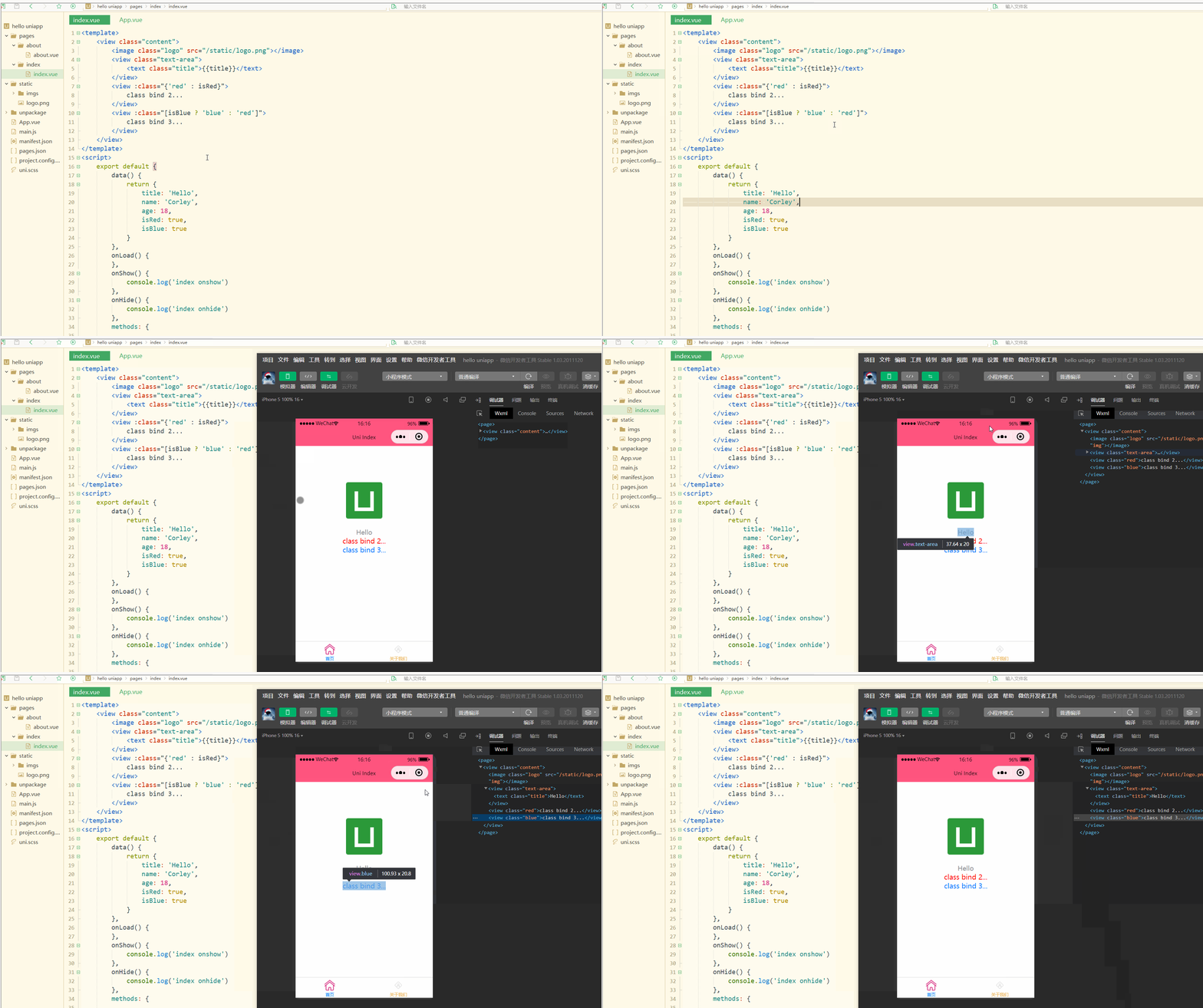
显示: 可以看到, 二、class和style绑定 前面已经提到过,可以在template语言块的某个标签中通过style属性直接定义样式,也可以在style语言块中通过选择器定义样式,再在template语言块中使用。 为节约性能,可以将Class与Style的表达式通过compiler硬编码到uni-app中,通过条件判断来决定是否显示某个样式。 1.class语法 class支持的语法方式如下: <!-- 1 --><view class="static" v-bind:class="{ active: isActive, 'text-danger': hasError }">111</view><!-- 2 --><view class="static" v-bind:class="[isActive ? activeClass : '', errorClass]">222</view><!-- 3 --><view class="static" v-bind:class="[{ active: isActive }, errorClass]">333</view><!-- 4 --><view :class="{ active: isActive }">444</view><!-- 5 --><view class="static" :class="[activeClass, errorClass]">555</view>其中,前3种为完整形式,后2种为简写形式; index.vue如下: <template>
<view class="content">
<image class="logo" src="/static/logo.png"></image>
<view class="text-area">
<text class="title">{{title}}</text>
</view>
<view :class="{'red' : isRed}">
class bind 2... </view>
<view :class="[isBlue ? 'blue' : 'red']">
class bind 3... </view>
</view></template><script>
export default {
data() {
return {
title: 'Hello',
name: 'Corley',
age: 18,
isRed: true,
isBlue: true
}
},
onLoad() {
},
onShow() {
console.log('index onshow')
},
onHide() {
console.log('index onhide')
},
methods: {
}
}</script><style>
.content {
display: flex;
flex-direction: column;
align-items: center;
justify-content: center;
}
.logo {
height: 200rpx;
width: 200rpx;
margin-top: 200rpx;
margin-left: auto;
margin-right: auto;
margin-bottom: 50rpx;
}
.text-area {
display: flex;
justify-content: center;
}
.title {
font-size: 36rpx;
color: #8f8f94;
}
.blue {
color: #007AFF;
}</style>显示: 可以看到,在进行编译选然后,微信开发者工具中wxml显示的是被渲染后的class值。 2.style语法 style 支持的语法如下: <!-- 1 --><view v-bind:style="{ color: activeColor, fontSize: fontSize + 'px' }">111</view><!-- 2 --><view v-bind:style="[{ color: activeColor, fontSize: fontSize + 'px' }]">222</view><!-- 3 --><view :style="{ color: activeColor, fontSize: fontSize + 'px' }">333</view><!-- 4 --><view :style="[{ color: activeColor, fontSize: fontSize + 'px' }]">444</view>其中,前2种为完整形式,后2种为简写形式。 index.vue如下: <template>
<view class="content">
<image class="logo" src="/static/logo.png"></image>
<view class="text-area">
<text class="title">{{title}}</text>
</view>
<view style="font-size: 10px;">
style static... </view>
<view :style="{fontSize: fontSize+'px'}">
class dynamic... </view>
</view></template><script>
var _self;
export default {
data() {
return {
title: 'Hello',
name: 'Corley',
age: 18,
fontSize: 20
}
},
onLoad() {
_self = this;
setTimeout(function(){
_self.fontSize = 30;
}, 3000)
},
onShow() {
console.log('index onshow')
},
onHide() {
console.log('index onhide')
},
methods: {
}
}</script><style>
.content {
display: flex;
flex-direction: column;
align-items: center;
justify-content: center;
}
.logo {
height: 200rpx;
width: 200rpx;
margin-top: 200rpx;
margin-left: auto;
margin-right: auto;
margin-bottom: 50rpx;
}
.text-area {
display: flex;
justify-content: center;
}
.title {
font-size: 36rpx;
color: #8f8f94;
}
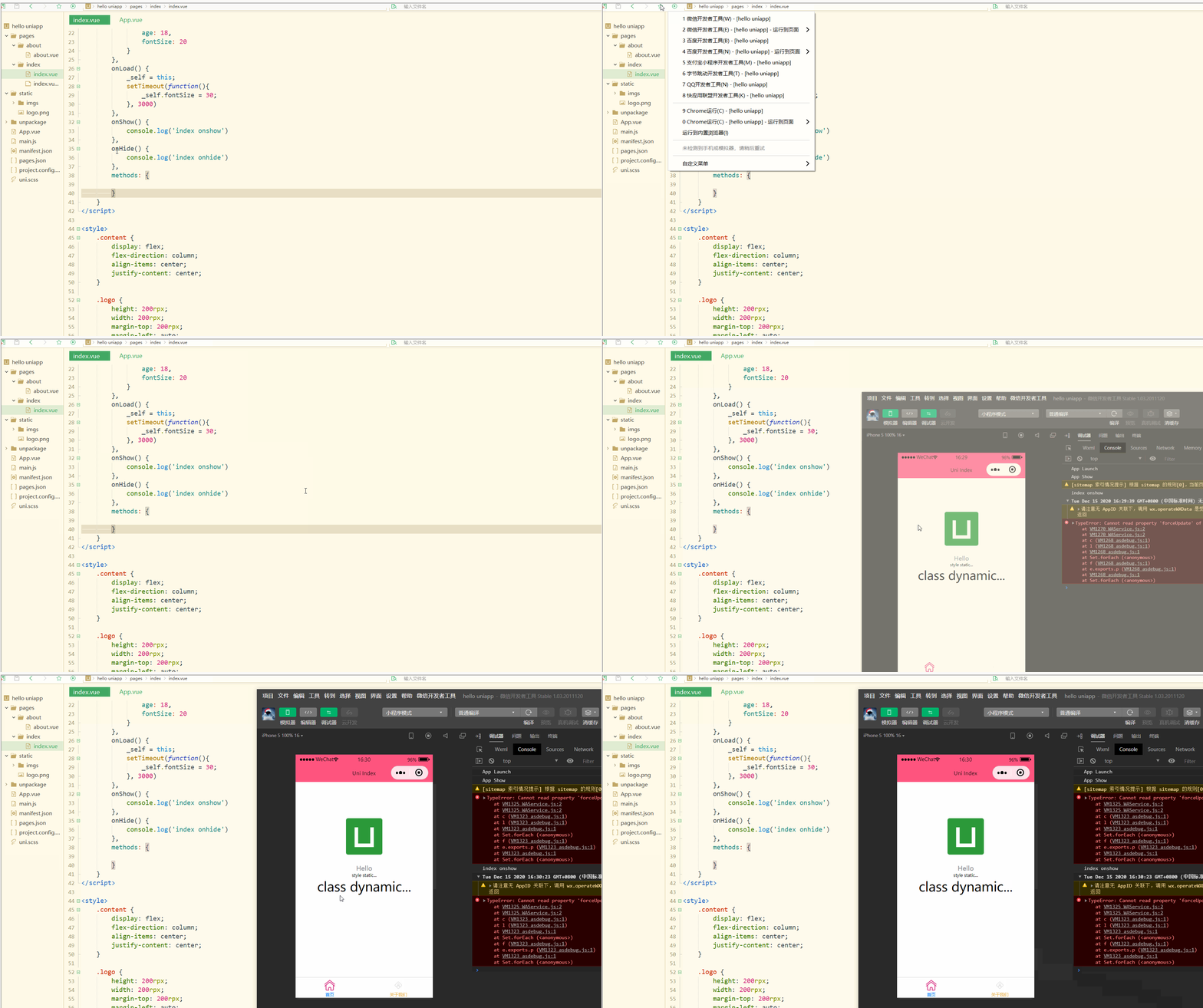
.blue {
color: #007AFF;
}</style>显示: 显然,样式可以动态发生变化。 需要注意,uni-app不支持 Vue官方文档中Class 与 Style 绑定 中的 classObject 和 styleObject 语法,但是可以用 computed 方法生成 class 或者 style 字符串,插入到页面中,如下: <template>
<view>
<!-- 支持 -->
<view class="container" :class="computedClassStr"></view>
<view class="container" :class="{active: isActive}"></view>
<!-- 不支持 -->
<view class="container" :class="computedClassObject"></view>
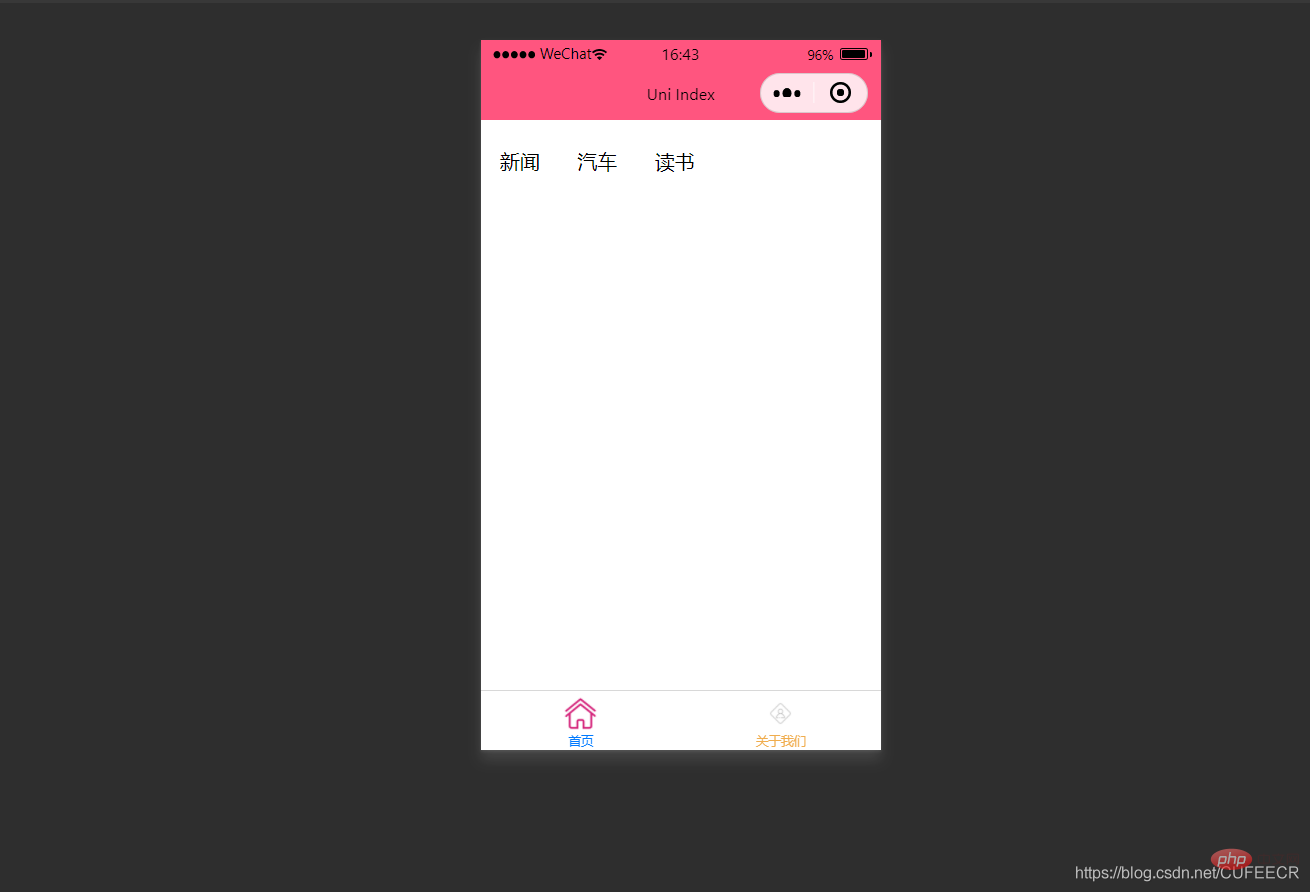
</view> </template>3.案例–动态菜单切换 本案例实现动态切换导航栏。 先展示横向排列的导航栏,index.vue如下: <template>
<view>
<view v-for="(item, index) in menus" class="menu">
{{item}} </view>
</view></template><script>
var _self;
export default {
data() {
return {
menus: [
'新闻', '汽车', '读书'
]
}
},
onLoad() {
},
onShow() {
console.log('index onshow')
},
onHide() {
console.log('index onhide')
},
methods: {
}
}</script><style>
.menu {
padding: 10px;
float: left;
margin: 5px;
line-height: 36px;
}</style>显示: 此时已经可以将导航栏横向展示了。 再实现当前的导航栏显示不一样的颜色,如下: <template>
<view>
<view v-for="(item, index) in menus" class="menu" :class="[activeIndex==index?'menuActive':'']">
{{item}} </view>
</view></template><script>
var _self;
export default {
data() {
return {
menus: [
'新闻', '汽车', '读书'
],
activeIndex: 0
}
},
onLoad() {
},
onShow() {
console.log('index onshow')
},
onHide() {
console.log('index onhide')
},
methods: {
}
}</script><style>
.menu {
padding: 10px;
float: left;
margin: 5px;
line-height: 36px;
}
.menuActive {
color: #FF0000 !important;
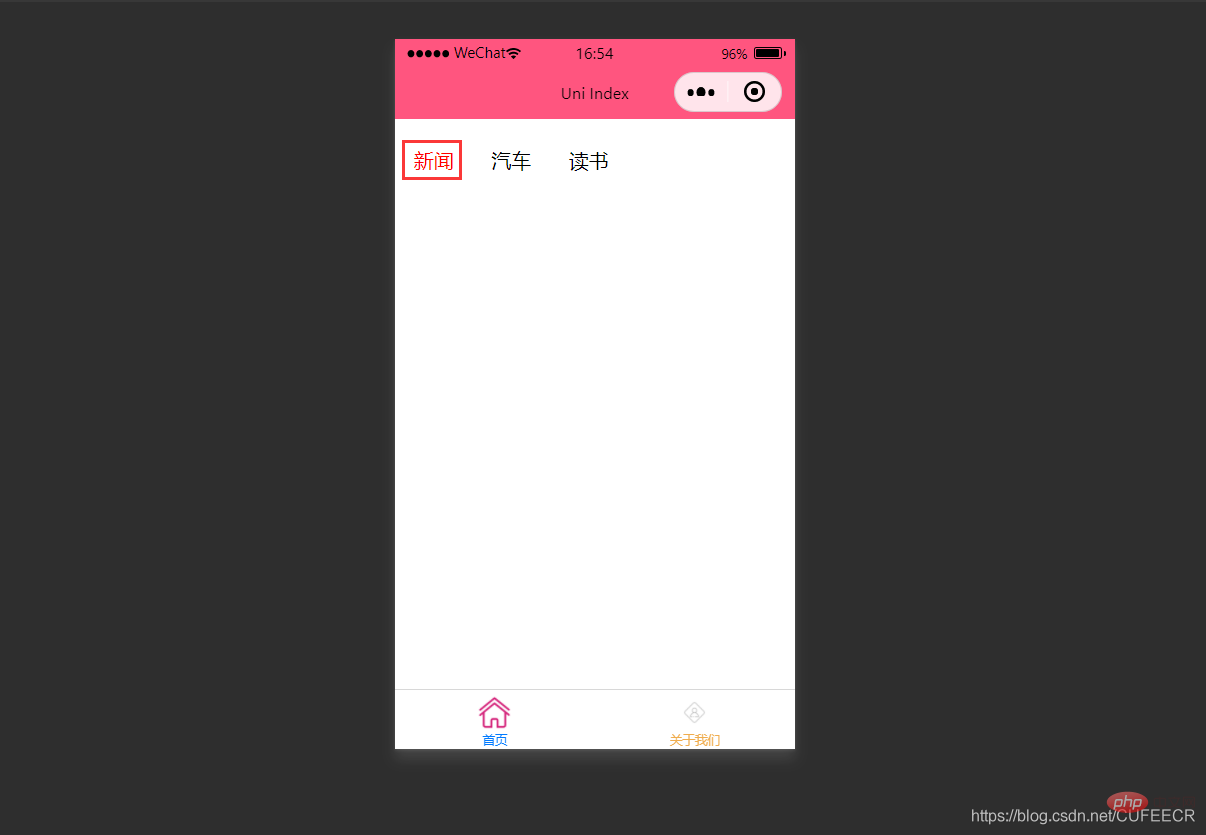
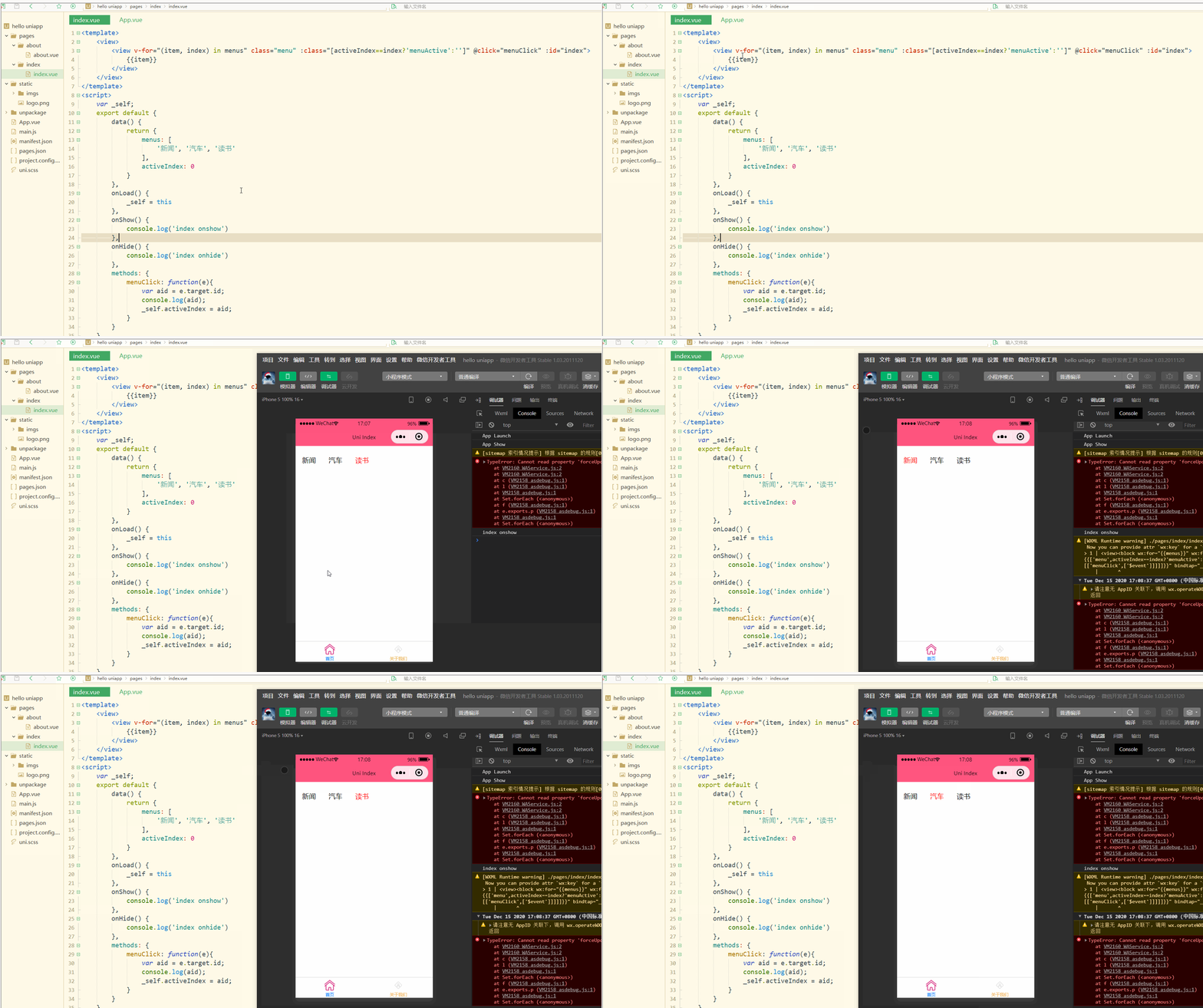
}</style>显示: 此时,第1个导航栏变为红色。 进一步实现点击时,颜色动态变化,如下: <template>
<view>
<view v-for="(item, index) in menus" class="menu" :class="[activeIndex==index?'menuActive':'']" @click="menuClick" :id="index">
{{item}} </view>
</view></template><script>
var _self;
export default {
data() {
return {
menus: [
'新闻', '汽车', '读书'
],
activeIndex: 0
}
},
onLoad() {
_self = this
},
onShow() {
console.log('index onshow')
},
onHide() {
console.log('index onhide')
},
methods: {
menuClick: function(e){
var aid = e.target.id;
console.log(aid);
_self.activeIndex = aid;
}
}
}</script><style>
.menu {
padding: 10px;
float: left;
margin: 5px;
line-height: 36px;
}
.menuActive {
color: #FF0000 !important;
}</style>使用了事件来达到动态切换的效果。 显示: 可以看到,点击不同的导航栏实现了颜色同步变化的效果。 三、事件和事件绑定 1.uni-app事件 事件映射表定义了WEB事件和uni-app事件之间的对应关系,具体如下:
说明:
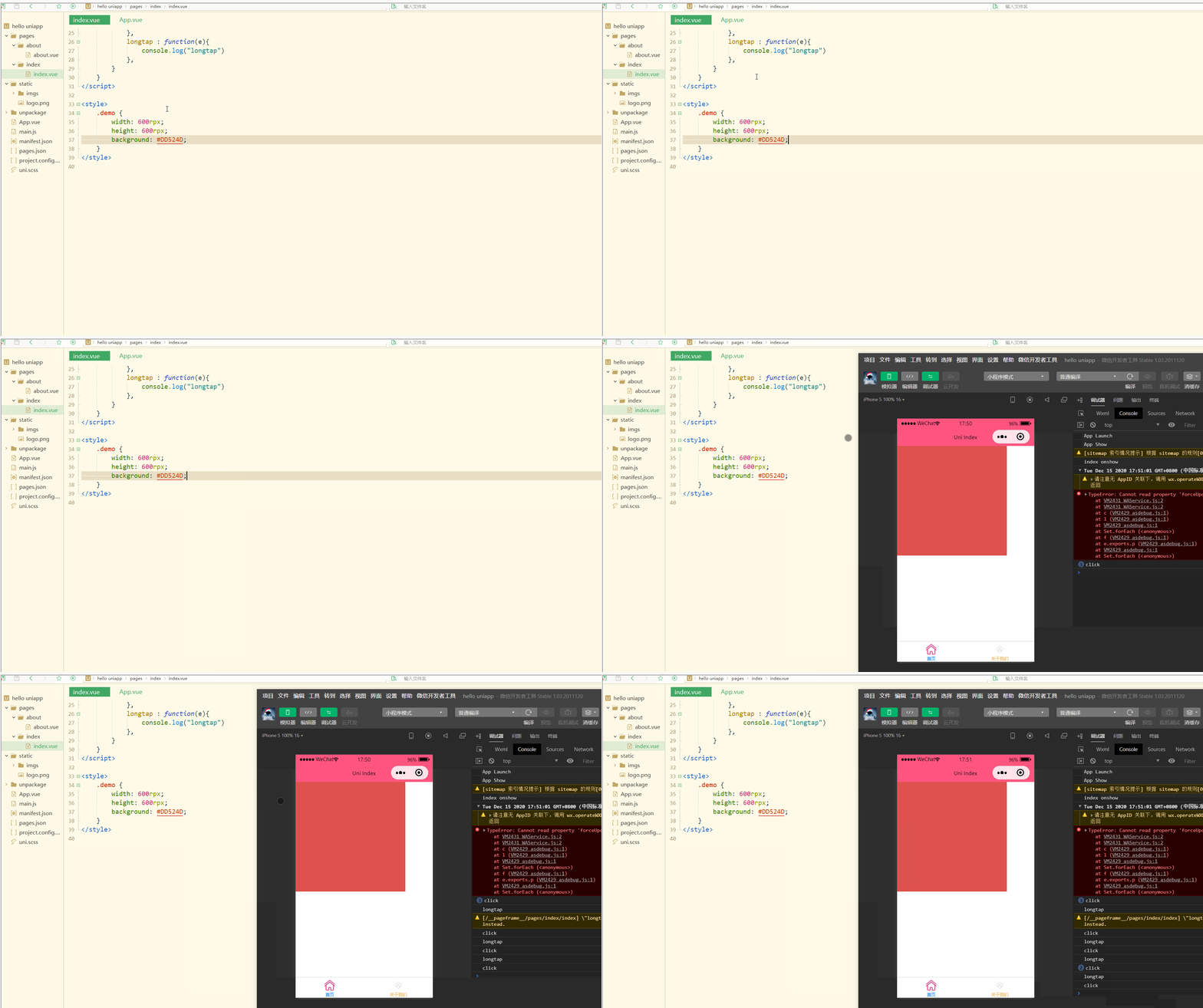
(5)按键修饰符: 2.事件绑定 使用 index.vue如下: <template>
<view>
<view class="demo" @click="clickTest" @longtap="longtap"></view>
</view></template><script>
var _self;
export default {
data() {
return {
}
},
onLoad() {
_self = this
},
onShow() {
console.log('index onshow')
},
onHide() {
console.log('index onhide')
},
methods: {
clickTest : function(e){
console.log("click")
},
longtap : function(e){
console.log("longtap")
},
}
}</script><style>
.demo {
width: 600rpx;
height: 600rpx;
background: #DD524D;
}</style>显示: 可以看到,在进行点击和长按时,会触发不同的事件、执行不同的操作。 可以在小程序中观察对应事件对象,并利用此对象获取更多信息。 3.事件传参 在触发事件时,还可以传入动态参数。 如下: <template>
<view>
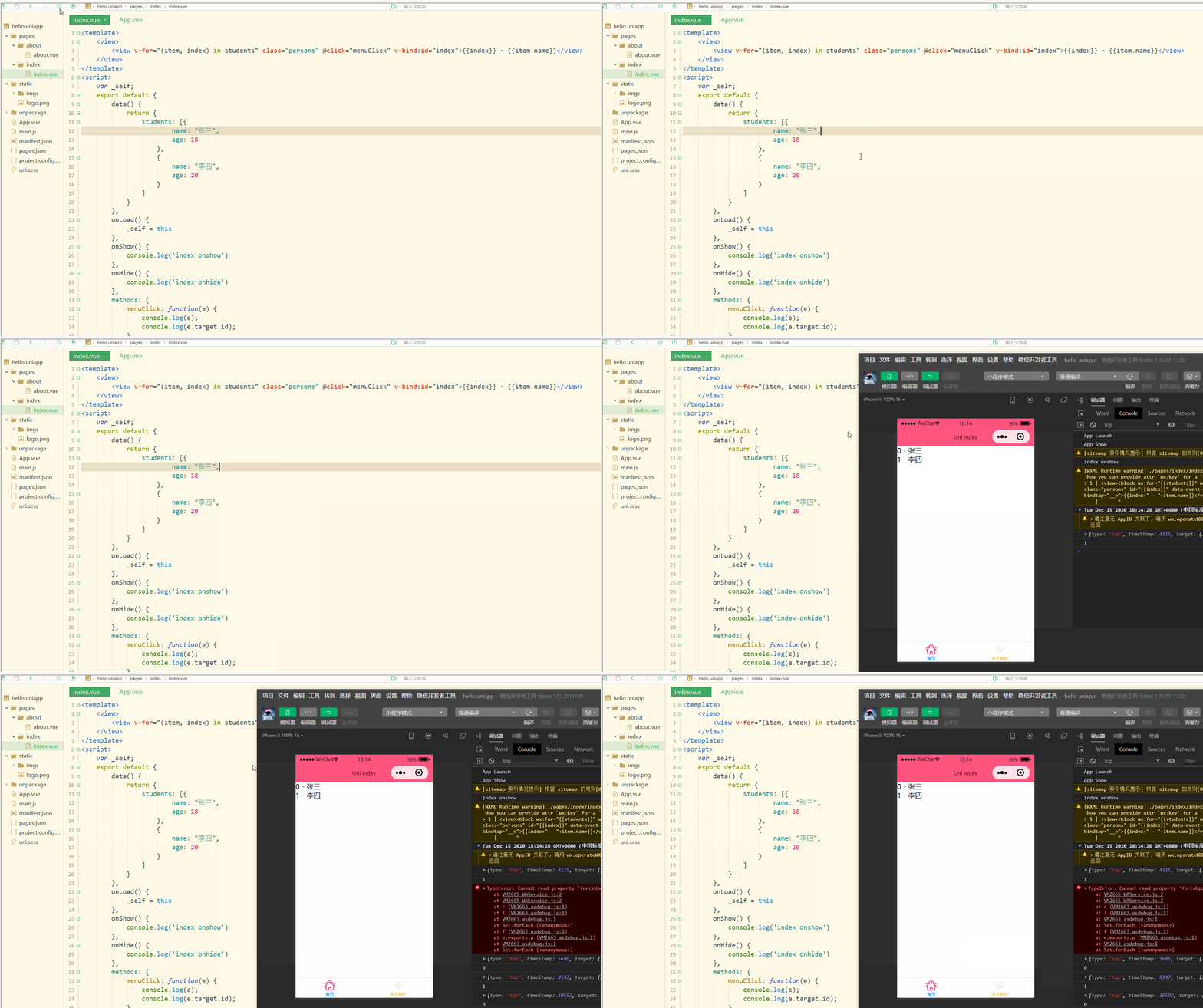
<view v-for="(item, index) in students" class="persons" @click="menuClick" v-bind:id="index">{{index}} - {{item.name}}</view>
</view></template><script>
var _self;
export default {
data() {
return {
students: [{
name: "张三",
age: 18
},
{
name: "李四",
age: 20
}
]
}
},
onLoad() {
_self = this
},
onShow() {
console.log('index onshow')
},
onHide() {
console.log('index onhide')
},
methods: {
menuClick: function(e) {
console.log(e);
console.log(e.target.id);
},
}
}</script><style>
.demo {
width: 600rpx;
height: 600rpx;
background: #DD524D;
}</style>显示: 可以看到,在进行点击时,控制台打印出了事件对象和 再如: <template>
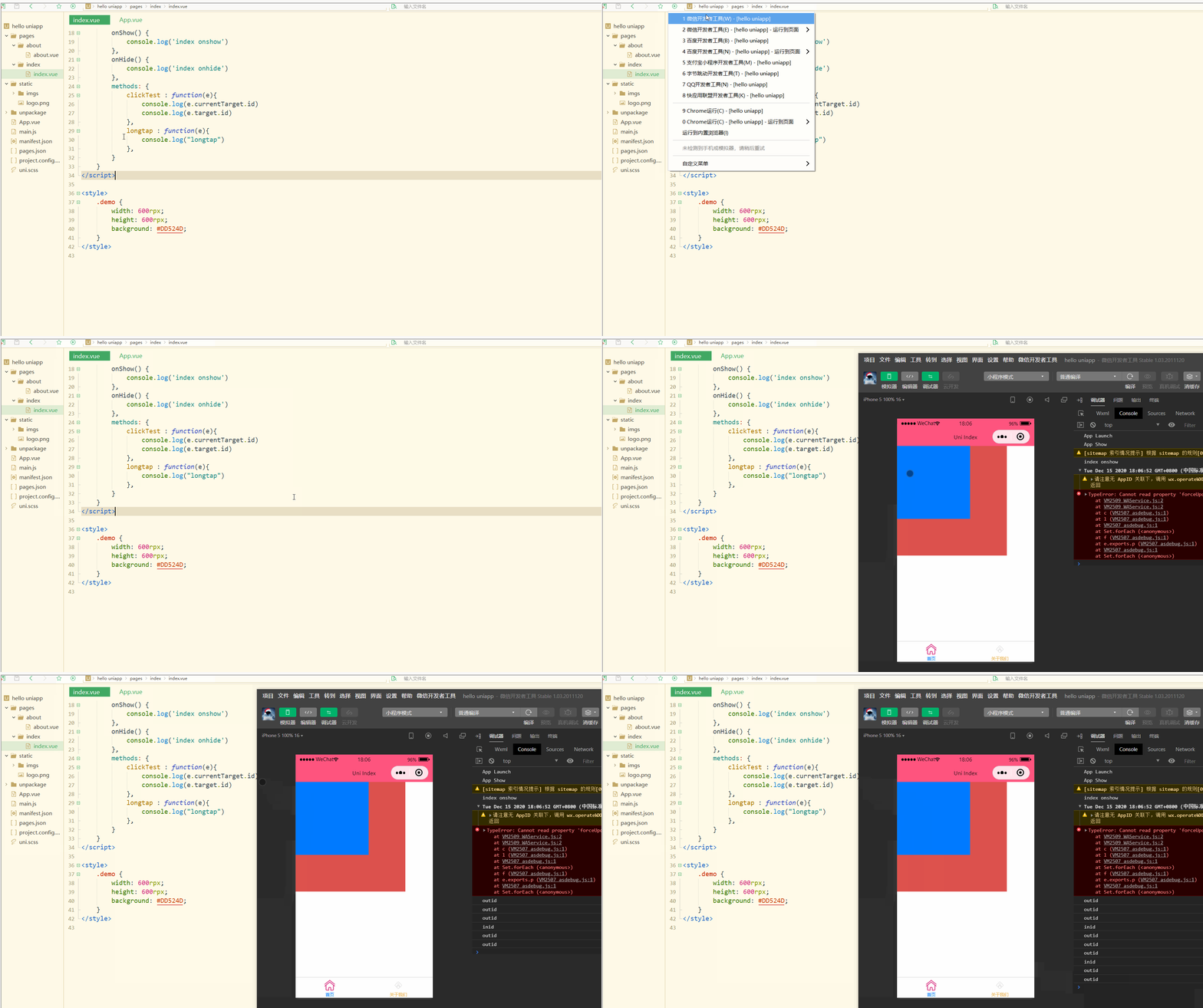
<view>
<view class="demo" id="outid" @click="clickTest" @longtap="longtap">
<view id="inid" style="width: 400rpx;height: 400rpx;background: #007AFF;"></view>
</view>
</view></template><script>
var _self;
export default {
data() {
return {
}
},
onLoad() {
_self = this
},
onShow() {
console.log('index onshow')
},
onHide() {
console.log('index onhide')
},
methods: {
clickTest : function(e){
console.log(e.currentTarget.id)
console.log(e.target.id)
},
longtap : function(e){
console.log("longtap")
},
}
}</script><style>
.demo {
width: 600rpx;
height: 600rpx;
background: #DD524D;
}</style>显示: 可以看到,在点击外部红色区域时,打印的两个id值相同; 总结 在uni-app中,不论是对于数据(变量),还是对于以class或style定义的样式,亦或定义的事件,都可以进行动态绑定、同步变化,这些特性有利于更高效地开发出所需功能,大大降低了开发成本。 以上就是uni-app入门教程之 数据绑定、样式绑定和事件处理的详细内容,更多请关注模板之家(www.mb5.com.cn)其它相关文章! |